

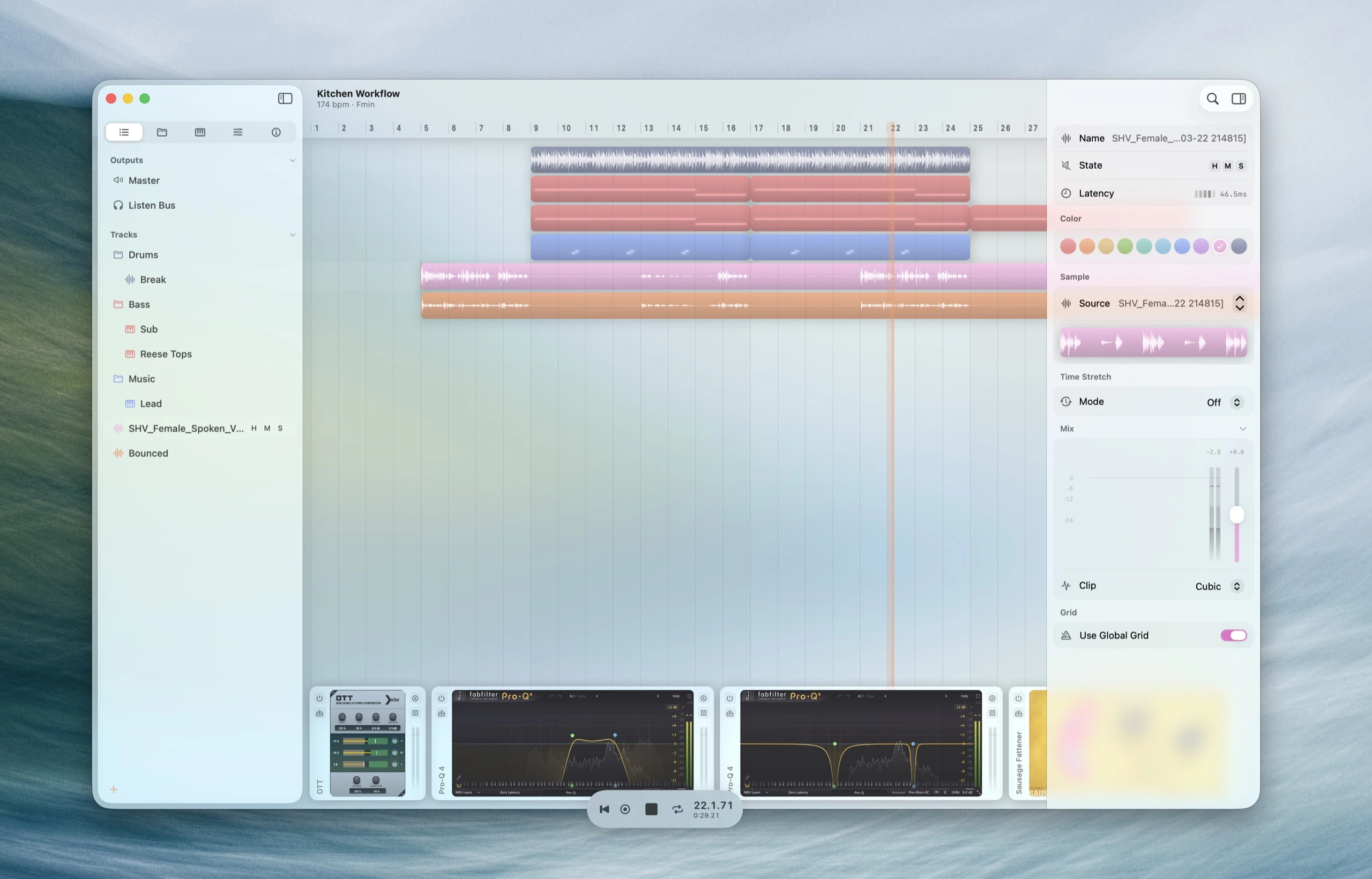
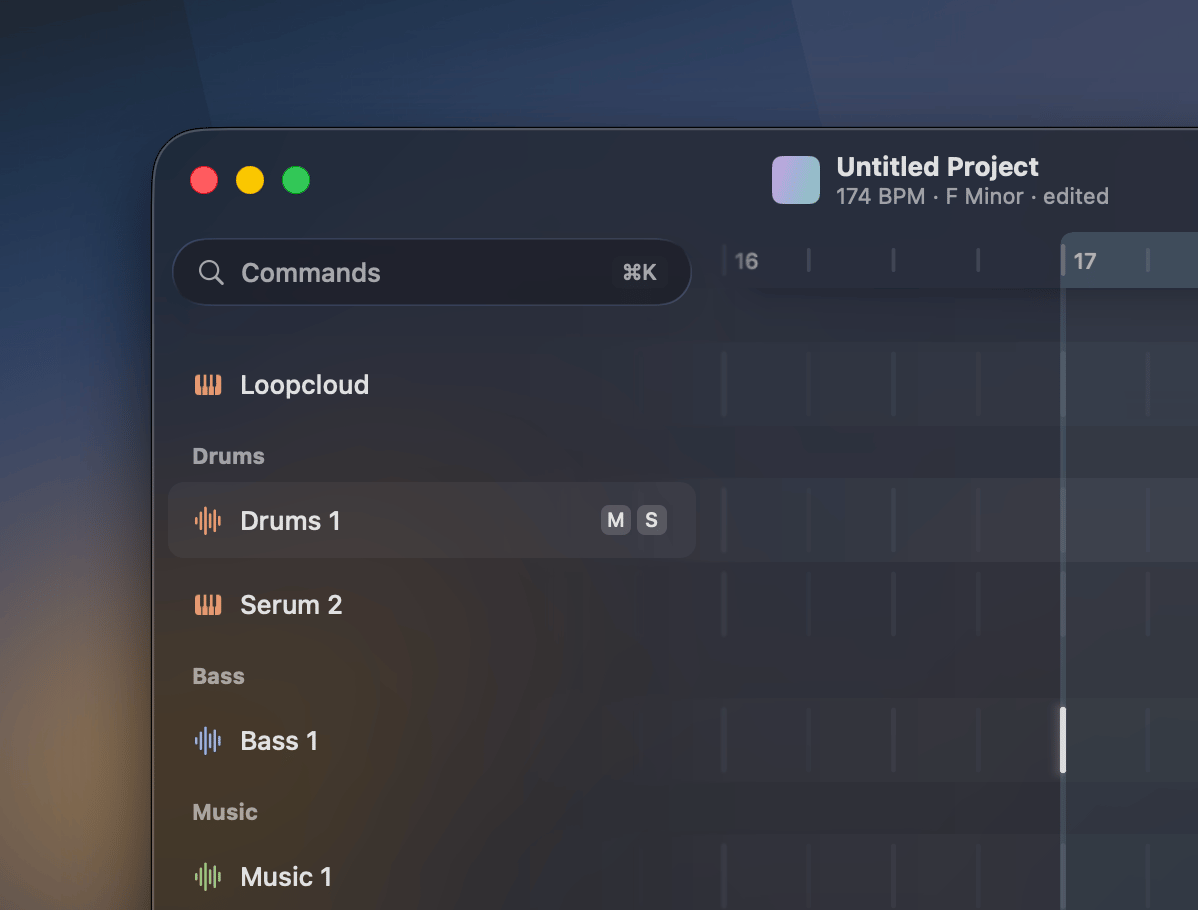
Track types
Each row carries an icon for its type. The type also determines where the track lives and what it can do.
Every project starts with a Master already in place.
Groups
A group collects tracks into a sub-mix bus: the child tracks route their audio through it, so a group’s Mix Controls and effects act on the summed signal. In the Sidebar a group appears as a folder-style header row with its child tracks nested beneath it.- Group / ungroup — select tracks and press
⌘Gto group them,⇧⌘Gto ungroup. - Collapse / expand — use the disclosure triangle, or the
←/→arrow keys when the row has focus, to fold a group’s children out of the way. - Nest — groups can contain other groups, with no depth limit.
- Move in and out — drag a track onto a group to add it, or out of one to remove it.
Output buses
Below the track list sits the bus list — the destinations audio flows into. Returns come first, with the Master pinned at the bottom. These rows can’t be dragged into the arrangement; they’re the downstream end of the signal path.- Returns — add one with
⌥⇧⌘T, or from the right-click menu in the track list’s empty area. New returns are namedReturn 1,Return 2, … and inserted just above the Master. See Returns & Sends. - Master — the project’s final output. It’s always present and can’t be deleted or renamed.
Working with tracks
Each track row has inline toggles for Mute and Solo. Drag rows to reorder them or to move them into and out of groups.- Select a block — click the first track, hold
⇧and click the last: every row in between comes with it.⇧↑/⇧↓grow the block a row at a time. - Add or remove one track —
⌘-click. A⇧-click afterwards measures its block from the row you last⌘-clicked. - Open a track’s editor — click the icon of an instrument track to open its instrument, of a sample track to open the sample editor, or of a Sampler track to open the Sampler. Under the pointer the icon turns into arrows pointing out; while the editor is open it shows arrows pointing in, and another click closes it. With
Settings→Experimental→Plugin preview on hoverswitched on, pointing at the icon is enough. An instrument plugin opens beside the track list without selecting the track, so the keys you play keep going where they went, and it shrinks back when you move away. The sample editor and the Sampler open the same way and close once the pointer has left both the row and the editor. - Which track plays — with several tracks selected, a small keyboard icon marks the one the computer keyboard and hardware MIDI actually play. It also appears when the selection sits on a Return or the Master, where the sound keeps coming from the track you played last. A track that cannot sound yet — an instrument with no plugin loaded, or a sample track with no source — is never marked, so a selection of nothing but empty tracks shows no icon at all.
⌘K) — the fastest way to run any command or jump to a track.
The track list follows the macOS sidebar icon size preference; choosing Small, Medium, or Large updates row height, icon sizing, and text density together.