

⌘1–⌘5):
- Tracks — settings for the selected track
- Browser — audio sample file browser
- Instruments — installed Audio Unit instruments
- Effects — installed Audio Unit effects
- Project — project settings, comments, and version history
Tracks
Select a track to open its settings in the Tracks tab. The sections from top to bottom: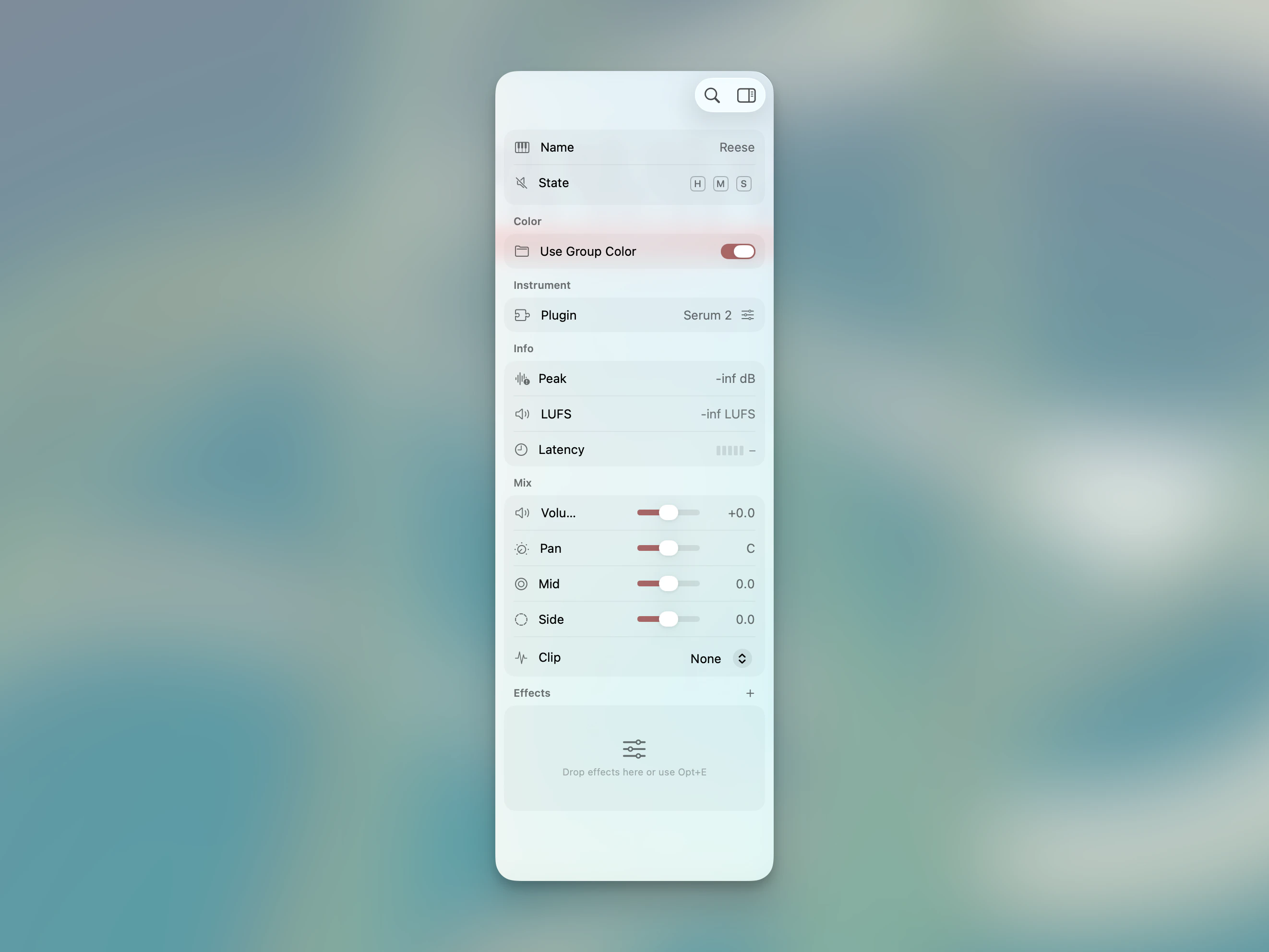
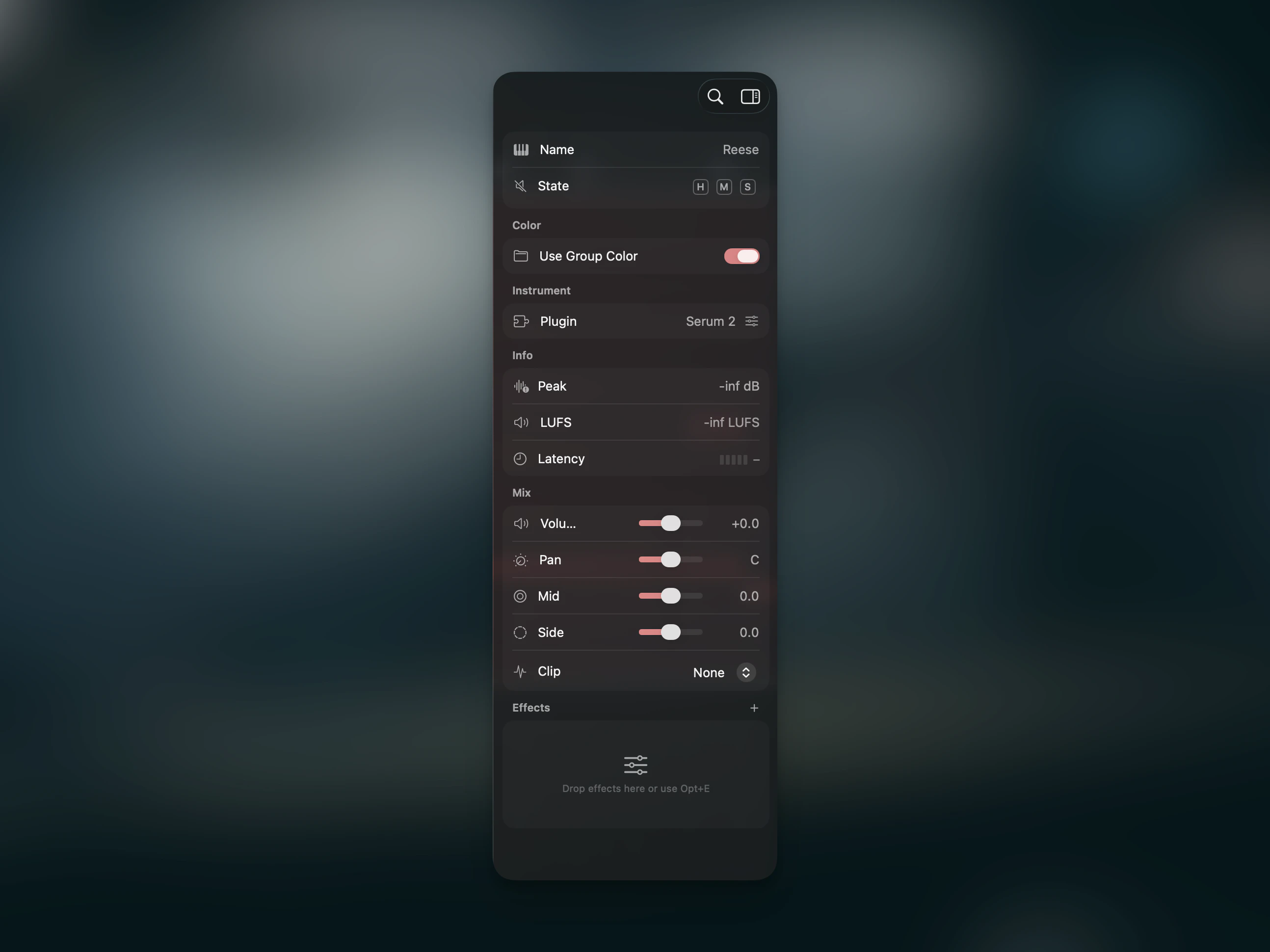
Track Properties
The track name (double-click to rename), plus toggles for Mute and Solo. If the track has plugin-induced latency, a latency indicator shows the total PDC delay in milliseconds.Color
A 10-color palette for the track, reachable from the track row’s Color context menu. If the track belongs to a group, the same menu offers Inherit — choose it and the track takes the group’s color.Source
Shows the assigned audio sample or Audio Unit instrument. To change it, click the empty slot or run Load Instrument or Sample… (⌥I) from the Command Palette — one searchable list holding both instruments and samples.
For sample tracks with transient markers:
Time stretch settings are also available here. See Time Stretching for details.
To use a sample’s rhythmic feel as a groove template, pick the track from the groove picker’s Project Samples section in the Grid area — there is nothing to enable on the track itself.
Click the waveform preview to open the Sample Editor — a modal sheet for editing transient markers, slice settings, and the source BPM grid on a much larger waveform. The same editor is available from the Command Palette as Edit Sample or Instrument (
⌥X), which opens the Sample Editor or the instrument’s own window depending on the track.
For instrument tracks, the loaded Audio Unit instrument is shown with its interface. Hold ⌘ and drag on its controls to adjust them in place without opening the full window — the same goes for MIDI-effect cards. See Direct Plugin Interaction.
With the experimental plugin preview on hover switched on, pointing at the interface opens the plugin at its native size right over the card. Move away and it shrinks back.
Mix
Signal history visualization, stereo metering, and a volume fader, then stereo width, mono-below, pan, mix filter, and clipper/limiter in the order the signal passes through them. The section is collapsible. See Mix Controls for the full reference.Sends
On sample and instrument tracks, the Sends section lists one row per Return track in the project. Drag a row’s slider above 0 to route the track into that return. On a Return track, an Incoming Sends section appears instead, mirroring the rows from every source currently feeding the return. See Returns & Sends for the full reference.Group Mix
On a group track, a Group Mix section lists one row per child track of the group, each with that track’s own volume fader — so the balance inside a bus can be made while looking at the bus. Click a row’s name to jump to that track. A nested group appears as a single row carrying its own fader. See Track Grouping.Grid
On an instrument track, the Chord Track toggle marks the track whose chords the rest of the project follows — see Chord Track. Below it, per-track groove settings. By default tracks follow the global groove. Disable Project Groove to assign the track its own groove template and amount. See Groove & Swing for details.Browser
A file browser for audio samples. Add folders via the Command Palette → Add Sample Folder. The browser shows your favorite folders as an outline view. Click a file to preview it. Drag one or multiple files onto the Timeline to import them as new tracks.For keyboard-driven search across your whole library — plus Smart Search and live sample swapping during playback — see the Sample Library page.
Instruments
Lists installed Audio Unit instruments in collapsible categories, including Favorites and Other. Drag an instrument onto an instrument track to load it. You can drag instruments within a category to reorder them, or drop them onto another category header to move them there. The context menu lets you create categories and assign a plugin without dragging. Plugins are scanned on first launch — use Scan All Plugins from the Command Palette to rescan.Effects
Lists installed Audio Unit effects in the same category-based browser. Drag an effect onto the Plugin Strip to add it to a track. Saved presets are shown under their respective plugin. Effects can be drag-reordered within a category and moved across categories by dropping them onto another category header.Plugin categories live at the app level, not per project, and sync across your Macs via iCloud. See Plugin Categories for how to create, rename, reorder, and assign categories.
Project
Global project settings and metadata:Info section
The Info section at the top of the Project tab combines the project artwork, an editable title field, and the project’s collection membership into a single group. The title defaults to the project file name and updates the window title as you type. The Collection row files the project into the groups you have created. It is a checklist rather than a single choice — a project can sit in several collections at once, or in none. The Project Overview (⌘O) groups all your iCloud projects the same way.