

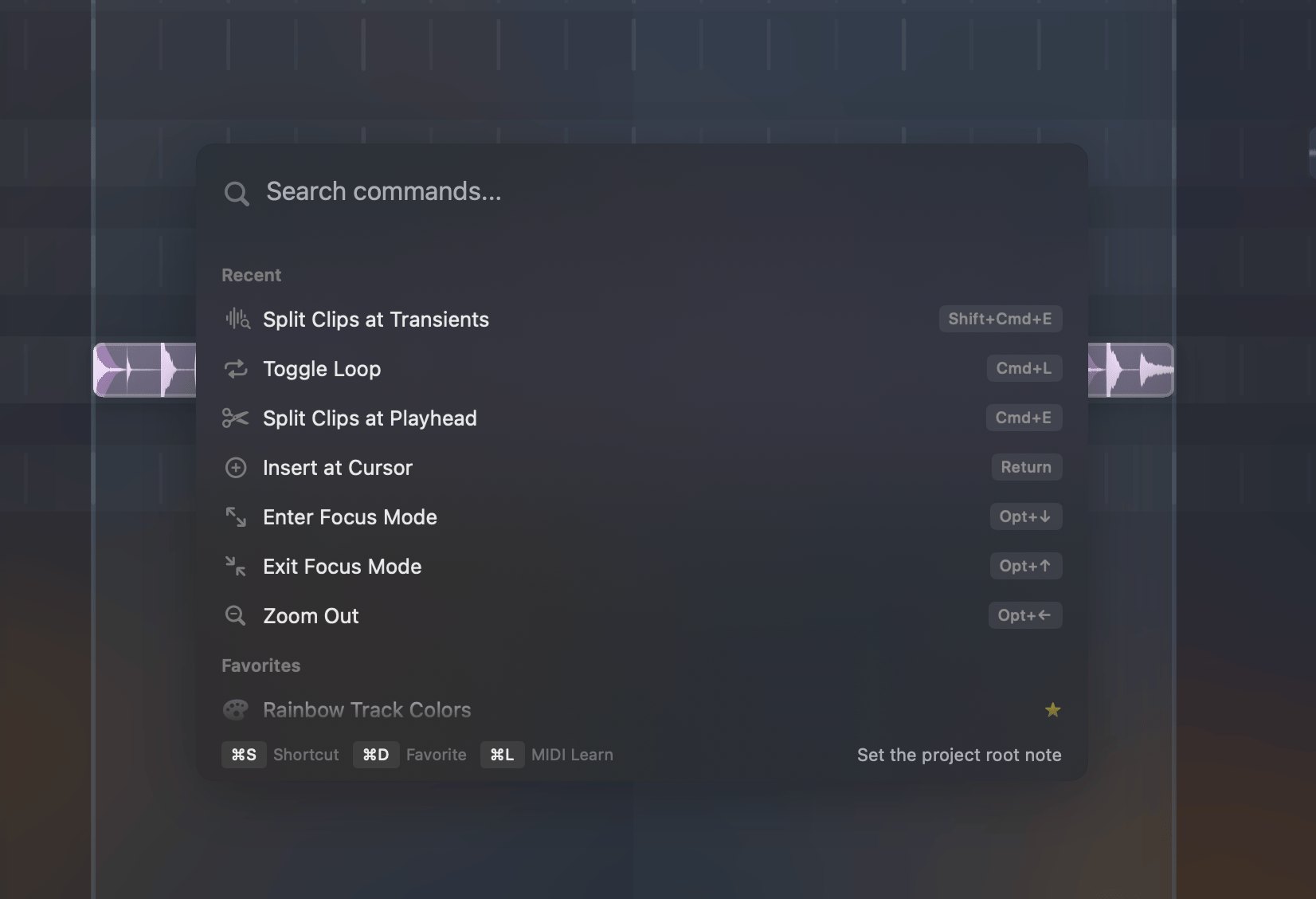
⌘K. Start typing to filter commands, use the arrow keys to navigate, and press Return to execute. Press Escape to go back or close.
Custom shortcuts
1
Open the Command Palette (⌘K)
2
Find the command you want
3
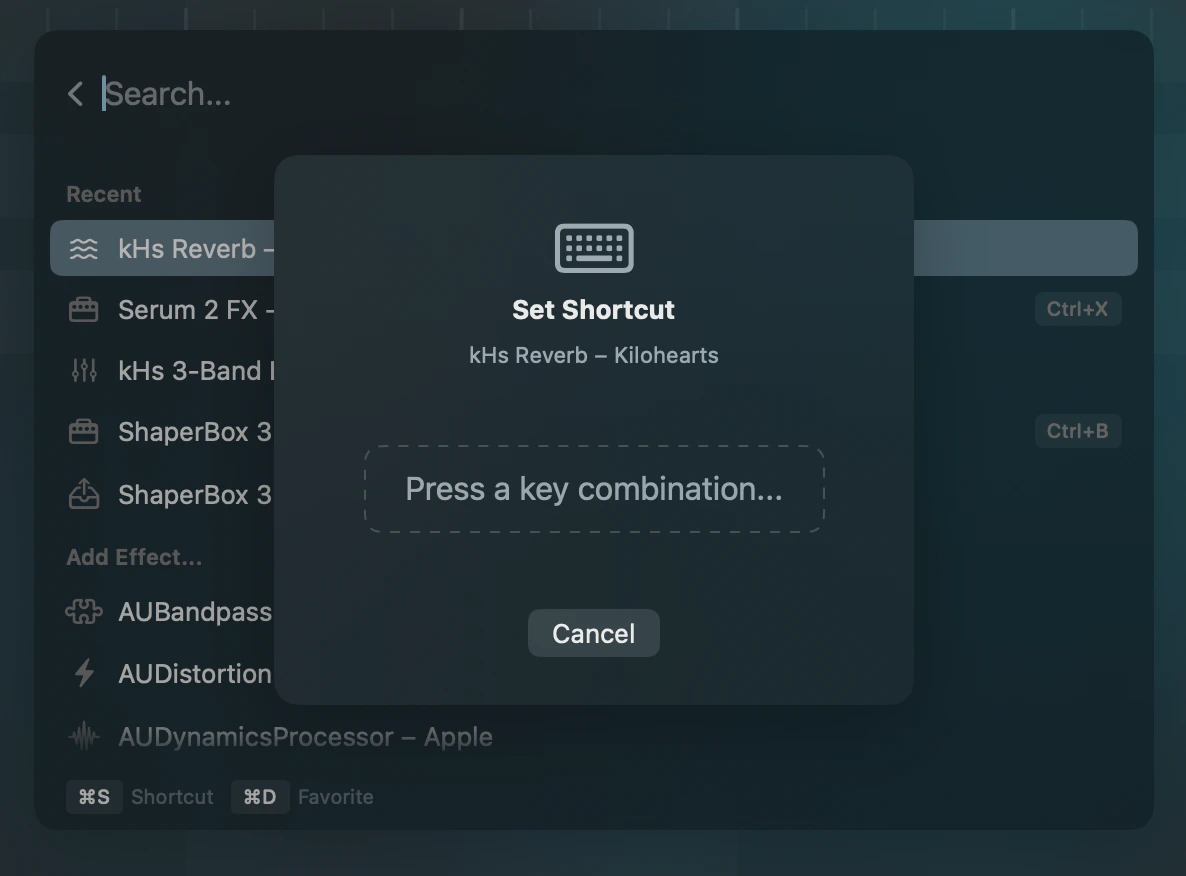
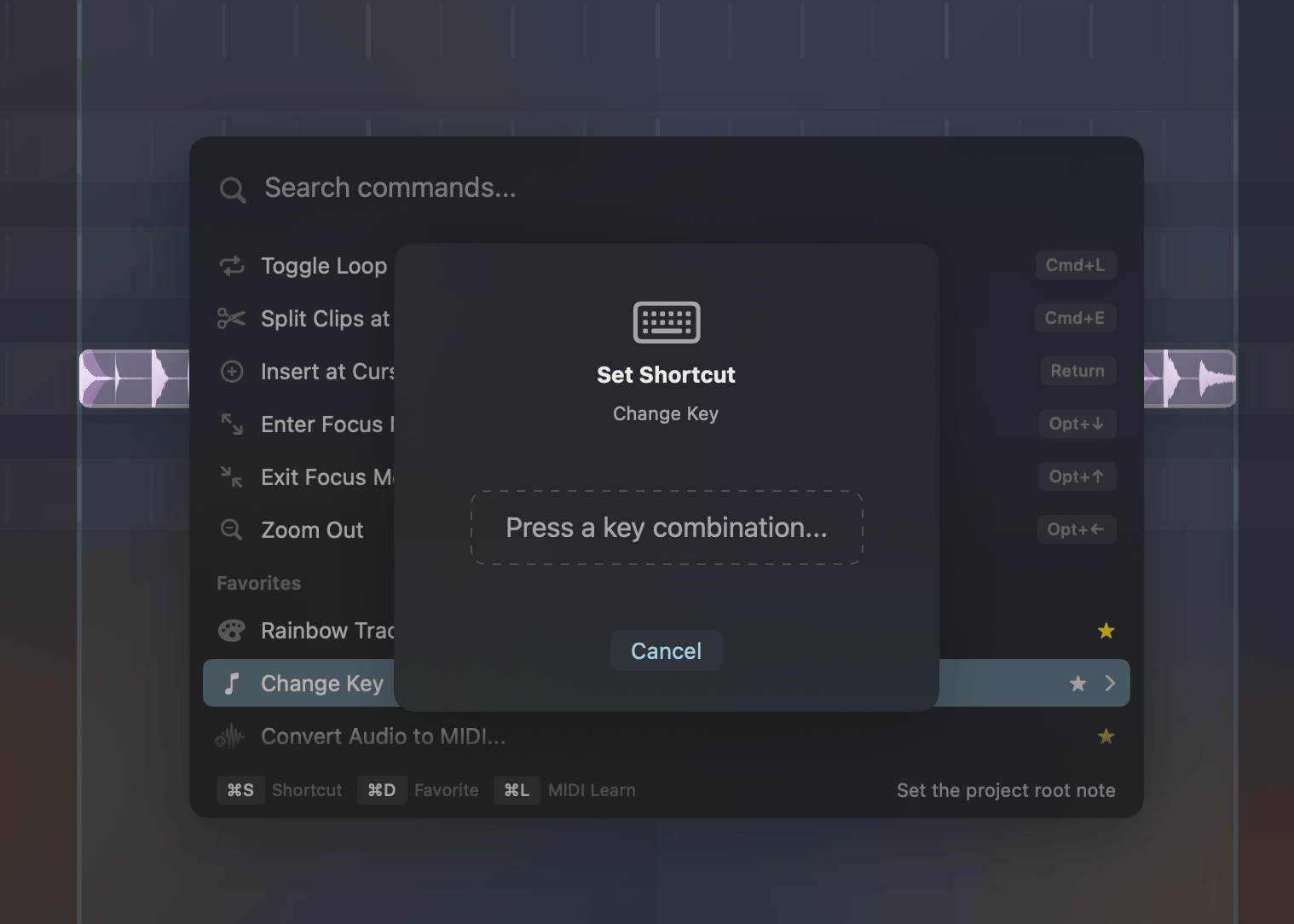
Press ⌘S
4
Press your desired key combination
5
Done — the shortcut is now active
If your combination is already used by another command, Gridshift shows you which command owns it and keeps Save disabled until you clear it and pick a different one.
Sub-commands
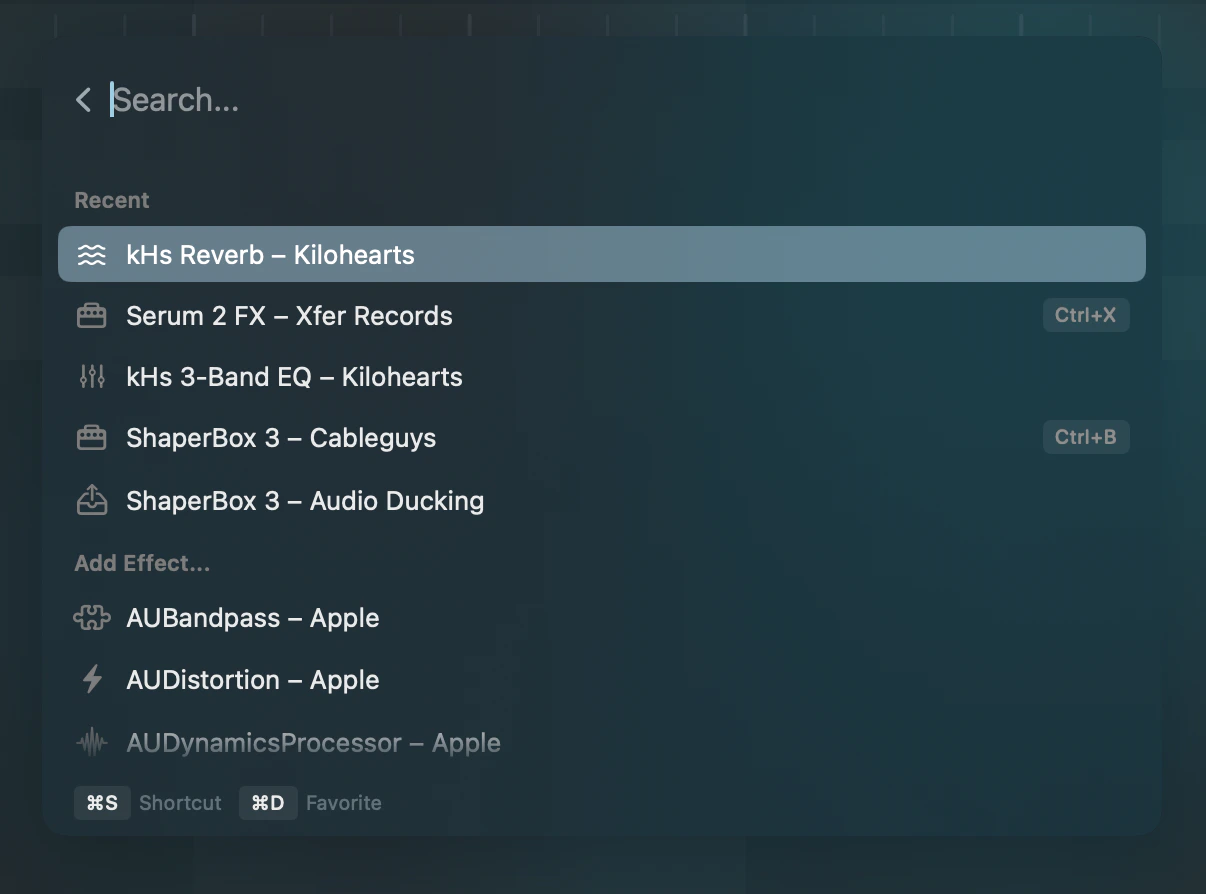
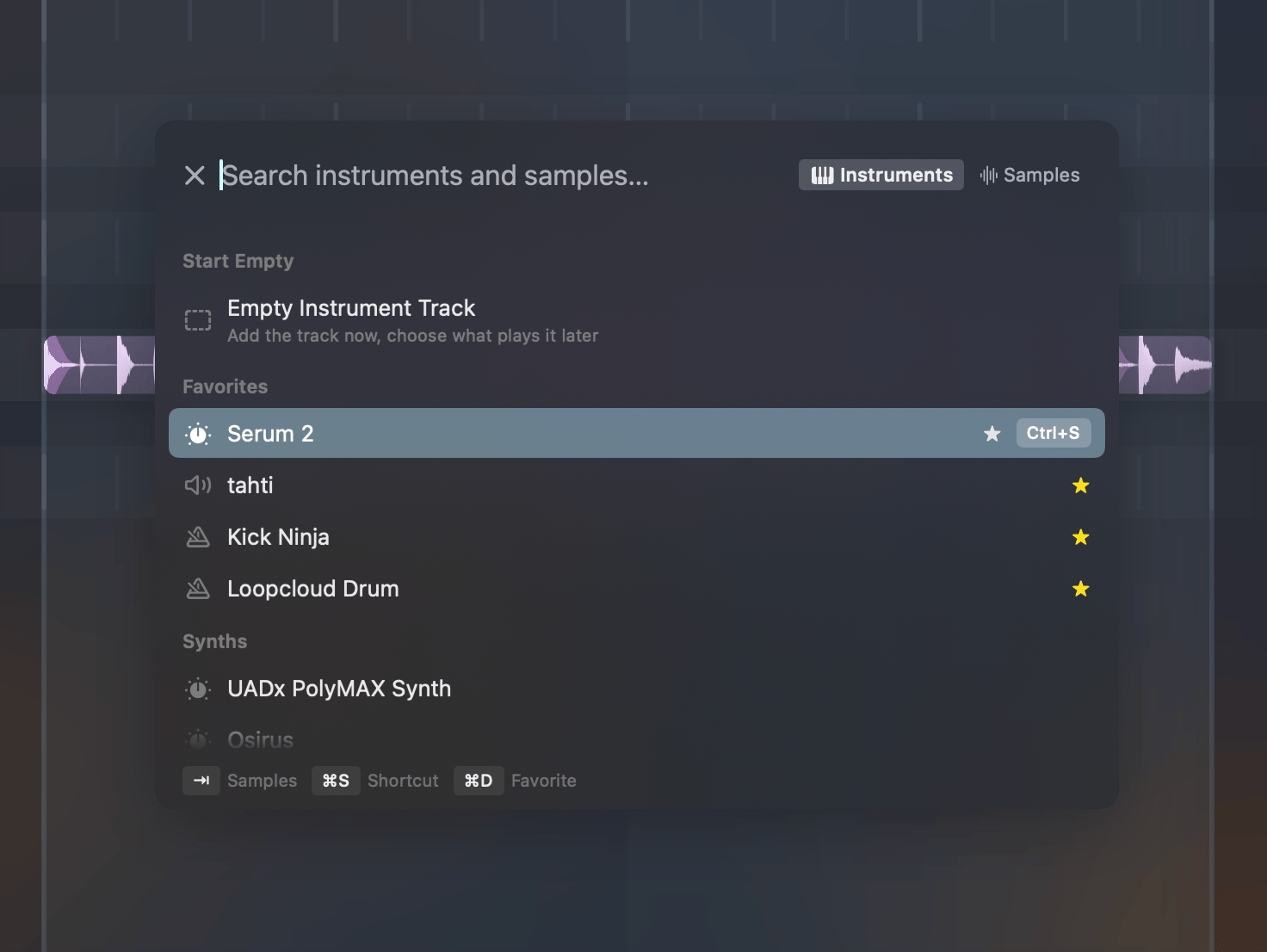
- Load Instrument or Sample… → instruments and samples for the selected track
- New Instrument Track… → the same list, creating the track for you
- Add Effect → shows available Audio Unit effects
- Change Scale → shows all available scales
- Set Track Color → shows the color palette
Return to drill into the sub-menu. Sub-commands can also have their own shortcuts.
Switching source with ⇥
The two instrument commands list the installed Audio Unit instruments and your sample library. Press ⇥ to switch between the two; whatever you typed carries over, so you can search both without retyping. A sample loads into the built-in sampler.
Because each row takes its own shortcut, ⌃1 can mean “new track running Serum” and ⌃2 “new track with this kick” — one keystroke, no palette. New Instrument Track… always creates a track, so a shortcut set there can never overwrite the instrument on the track you have selected. Its first row, Empty Instrument Track, is the plain ⇧⌘T of before.
Favorites & recents
Commands you use frequently appear at the top:- Favorites (⭐) — commands you’ve explicitly marked with
⌘D - Recents — your most recently used commands