

- Where it sits — its position on the timeline, plus its mute and quantize state.
Create linked clips
By default, duplicating a clip keeps it linked to the original. Duplicate (⌘D) drops a linked copy directly after the original; stamp (⌘+click an
empty area with a clip selected) places one at the click position; and copying
then pasting on the same track (⌘C then ⌘V) puts a linked copy at the
cursor. Duplicating a group clip carries the link down — each child clip is
duplicated as a linked copy.
Edit any one of them afterwards — paint a note, drag a fade, move the gain
slider — and the change shows up on every linked copy right away, including
during playback.
Create an unlinked copy
When you want a copy that evolves on its own, make it unlinked instead. Duplicate Unlinked (⇧⌘D) makes a copy that starts identical but isn’t
linked, and Unlink Clip (⌘I, or the clip picker) detaches the selected
clip so its edits no longer carry to the others.
Unlink Clip is bound to
⌘I. You can also run it from the Command
Palette or the clip picker (see below), or reassign
the shortcut in Settings → Shortcuts. It only acts on a single focused or
selected clip; a multi-clip selection is ambiguous and is left untouched.Operations that unlink automatically
Some edits change a clip so much that it can’t sensibly stay linked. These quietly unlink the affected clip:- Slicing or splitting a clip (
⌘E,⇧⌘E, or a mouse slice) - Duplicating only part of a clip (for example across a partial marquee selection)
- Moving or pasting a clip to a different track — linking is same-track only, so the destination copy is always unlinked
Re-link identical clips
Already have copies that aren’t linked — recorded in a row, duplicated unlinked, pasted, or built by hand — but are exactly the same? Link Identical Clips (⇧⌘I) joins them back together: clips whose body matches — same notes
or sample window, fades, gain, and length — become one linked group, so editing
any of them edits them all. It’s the bulk inverse of Unlink.
What gets linked follows your selection:
- One clip focused or selected — every clip on that track identical to it joins its group.
- A marquee — the clips the marquee touches, just like duplicate or delete would resolve it.
- Several clips selected — the selected clips are grouped by identical content and each group is linked. Clips already linked to a selected clip follow along — linking never breaks up an existing group. Separate copies outside the selection are left alone, so you can link the chorus copies while an intro copy stays free.
- Nothing selected — the selected track is swept whole: every set of identical clips on it becomes a linked group in one go. Selecting a group track sweeps all of its member tracks; automation lanes are only swept when you select the lane itself.
Link Identical Clips is bound to
⇧⌘I — the mirror of Unlink’s ⌘I. Run it
from the Command Palette or the clip picker (see
below). Identical means exactly identical: a copy whose gain or length you’ve
since changed — including slices recorded at different trigger levels, or held
for slightly different lengths with record-quantize off — won’t be linked.Visual identity
Linked clips share a shade of the track color so you can see groupings at a glance:- An unlinked clip uses the plain track color.
- Linked clips are tinted with the same shade. A different set of linked clips on the same track gets a different shade, so you can tell groups apart.
The clip picker
When you enter Focus Mode on a clip, the floating bar starts with a clip picker — a colored swatch, a count of how many clips are linked together, and a chevron.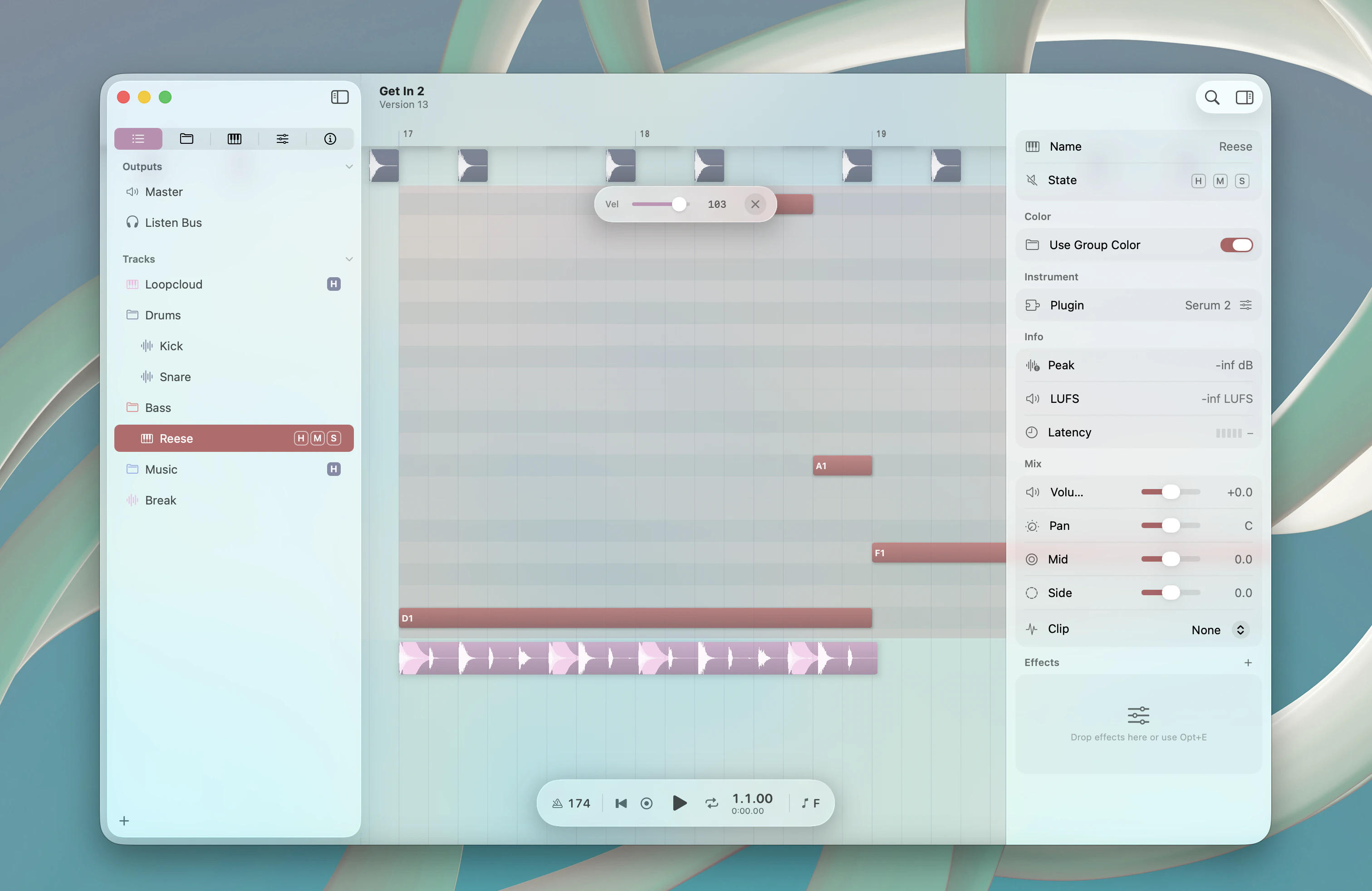
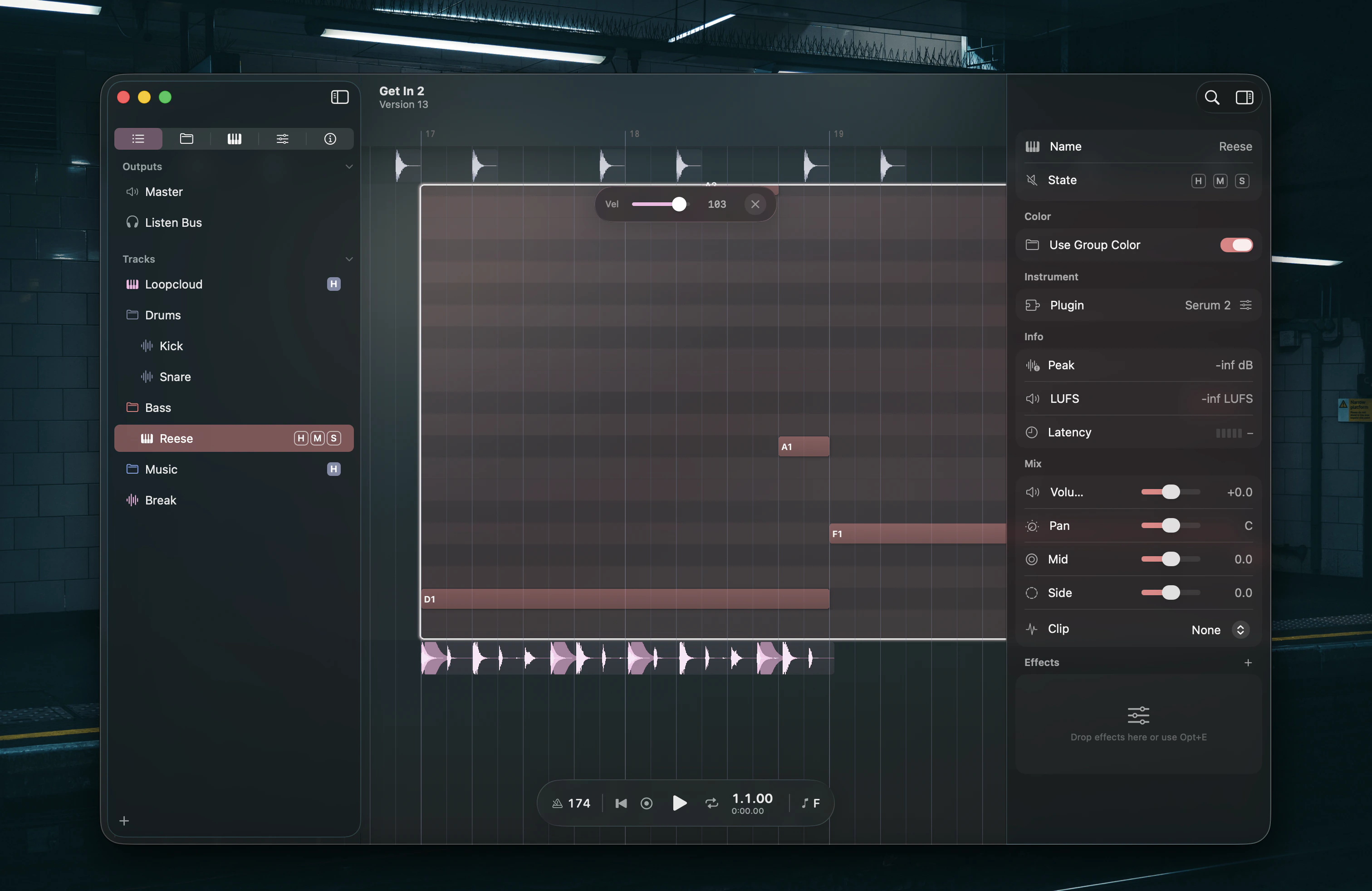
- Click a row to switch the focused clip to that one. It immediately plays and displays the clip you picked.
- Unlink (footer) detaches the focused clip so its edits stop carrying to the others. It’s disabled when the clip isn’t linked to anything.
- Link Identical (footer) merges every clip on the track whose body is exactly the same as the focused one into a single linked group. It’s disabled when there’s nothing identical to link.
Escape to close the picker; a second Escape exits Focus Mode.
Things to know
- Linking is same-track only. A clip can only link to other clips on its own track. This is why moving a clip to another track always unlinks it.
- Position, mute, and quantize stay per-copy. Only the clip body is shared — each linked clip keeps its own spot on the timeline and its own mute state.
- Clip-gain number keys aren’t shared. The
0–9clip-gain keys on the timeline change exactly the clips you selected and leave linked copies alone. Use the gain slider in Focus Mode (or the inspector) if you want a gain change to carry across the link.