> ## Documentation Index
> Fetch the complete documentation index at: https://docs.gridshift.studio/llms.txt
> Use this file to discover all available pages before exploring further.
# Sidebar
> The track list on the left — every track, group, and output bus in the project, always visible.
The sidebar sits on the left side of the main window and shows the **track list**: a hierarchical view of every track, [group](/features/track-grouping), and output bus in the project. It stays visible at all times — browsing samples, instruments, and effects all live in the [Inspector](/features/inspector) on the right, so the track list is never covered.
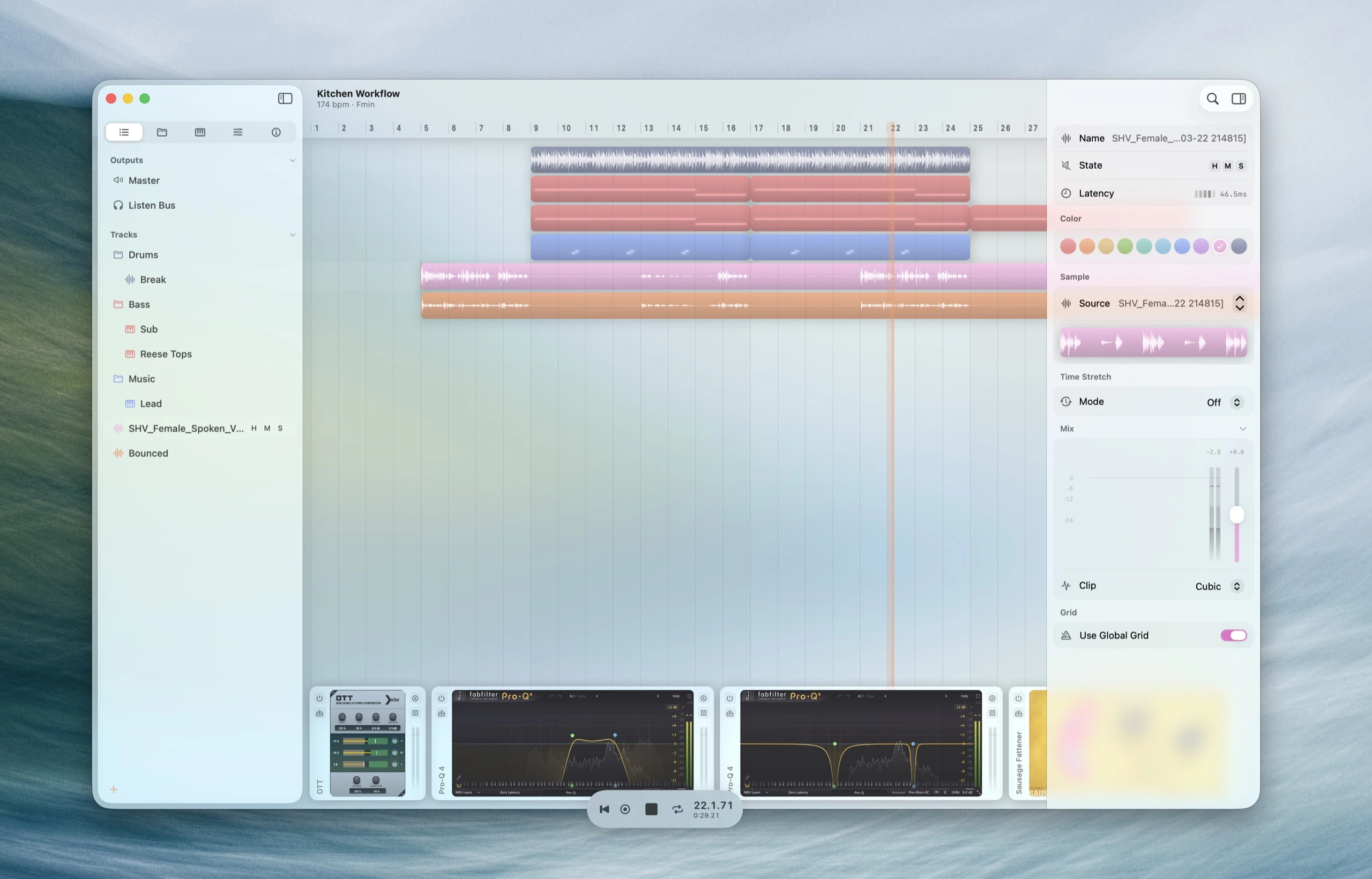
 The sidebar has two regions. The **track list** at the top holds the tracks you arrange — sample, instrument, and group tracks — and is freely reorderable. A fixed **output bus** list is pinned below it, holding the buses that audio flows into.
## Track Types
Each row carries an icon for its type. The type also determines where the track lives and what it can do.
| Type | Lives in | What it is |
| -------------- | ------------ | -------------------------------------------------------------------------------------------------------------- |
| **Sample** | Track list | Holds audio sample clips on the timeline. |
| **Instrument** | Track list | Hosts an Audio Unit instrument, played by MIDI clips. |
| **Group** | Track list | A sub-mix bus that contains other tracks. Shown as a folder-style header row, with no timeline row of its own. |
| **Return** | Output buses | A shared bus fed by [sends](/features/sends) — load an effect once and push many tracks into it. |
| **Master** | Output buses | The project's final stereo output. Always present; can't be deleted, renamed, or recolored. |
Every project starts with a Master already in place.
## Groups
A [group](/features/track-grouping) collects tracks into a sub-mix bus: the child tracks route their audio through it, so a group's [mix controls](/features/mix) and effects act on the summed signal. In the sidebar a group appears as a folder-style header row with its child tracks nested beneath it.
* **Group / ungroup** — select tracks and press `⌘G` to group them, `⌘⇧G` to ungroup.
* **Collapse / expand** — use the disclosure triangle, or the `←` / `→` arrow keys when the row has focus, to fold a group's children out of the way.
* **Nest** — groups can contain other groups, with no depth limit.
* **Move in and out** — drag a track onto a group to add it, or out of one to remove it.
See [Track Grouping](/features/track-grouping) for routing, color inheritance, and the full reference.
## Output Buses
Below the track list sits the bus list — the destinations audio flows into. Returns come first, with the Master pinned at the bottom. These rows can't be dragged into the arrangement; they're the downstream end of the signal path.
* **Returns** — add one with `⌘⌥⇧T`, or from the right-click menu in the track list's empty area. New returns are named `Return 1`, `Return 2`, … and inserted just above the Master. See [Returns & Sends](/features/sends).
* **Master** — the project's final output. It's always present and can't be deleted or renamed.
The Master carries no Solo button — as the downstream-most node it's always audible. Returns are full participants in mute and solo.
## Working with Tracks
Each track row has inline toggles for **Mute** and **Solo**. Drag rows to reorder them or to move them into and out of groups.
A **+** button at the bottom of the track list adds sample or instrument tracks. Right-click a row for **Duplicate Track** and **Delete Track**.
The **Search** field at the top opens the [Command Palette](/features/command-palette) (`⌘K`) — the fastest way to run any command or jump to a track.
The track list follows the macOS sidebar icon size preference; choosing **Small**, **Medium**, or **Large** updates row height, icon sizing, and text density together.
## Shortcuts
The keys most useful while working in the sidebar are below. The [Global Shortcuts](/shortcuts/global) reference has the complete grid, including track and inspector-tab focus.
| Action | Shortcut |
| ------------------------------- | ------------ |
| Add sample track | `⌘T` |
| Add instrument track | `⌘⇧T` |
| Add return track | `⌘⌥⇧T` |
| Group / ungroup selected tracks | `⌘G` / `⌘⇧G` |
| Collapse / expand group | `←` / `→` |
| Extend selection up / down | `⇧↑` / `⇧↓` |
| Search / Command Palette | `⌘K` |
The sidebar has two regions. The **track list** at the top holds the tracks you arrange — sample, instrument, and group tracks — and is freely reorderable. A fixed **output bus** list is pinned below it, holding the buses that audio flows into.
## Track Types
Each row carries an icon for its type. The type also determines where the track lives and what it can do.
| Type | Lives in | What it is |
| -------------- | ------------ | -------------------------------------------------------------------------------------------------------------- |
| **Sample** | Track list | Holds audio sample clips on the timeline. |
| **Instrument** | Track list | Hosts an Audio Unit instrument, played by MIDI clips. |
| **Group** | Track list | A sub-mix bus that contains other tracks. Shown as a folder-style header row, with no timeline row of its own. |
| **Return** | Output buses | A shared bus fed by [sends](/features/sends) — load an effect once and push many tracks into it. |
| **Master** | Output buses | The project's final stereo output. Always present; can't be deleted, renamed, or recolored. |
Every project starts with a Master already in place.
## Groups
A [group](/features/track-grouping) collects tracks into a sub-mix bus: the child tracks route their audio through it, so a group's [mix controls](/features/mix) and effects act on the summed signal. In the sidebar a group appears as a folder-style header row with its child tracks nested beneath it.
* **Group / ungroup** — select tracks and press `⌘G` to group them, `⌘⇧G` to ungroup.
* **Collapse / expand** — use the disclosure triangle, or the `←` / `→` arrow keys when the row has focus, to fold a group's children out of the way.
* **Nest** — groups can contain other groups, with no depth limit.
* **Move in and out** — drag a track onto a group to add it, or out of one to remove it.
See [Track Grouping](/features/track-grouping) for routing, color inheritance, and the full reference.
## Output Buses
Below the track list sits the bus list — the destinations audio flows into. Returns come first, with the Master pinned at the bottom. These rows can't be dragged into the arrangement; they're the downstream end of the signal path.
* **Returns** — add one with `⌘⌥⇧T`, or from the right-click menu in the track list's empty area. New returns are named `Return 1`, `Return 2`, … and inserted just above the Master. See [Returns & Sends](/features/sends).
* **Master** — the project's final output. It's always present and can't be deleted or renamed.
The Master carries no Solo button — as the downstream-most node it's always audible. Returns are full participants in mute and solo.
## Working with Tracks
Each track row has inline toggles for **Mute** and **Solo**. Drag rows to reorder them or to move them into and out of groups.
A **+** button at the bottom of the track list adds sample or instrument tracks. Right-click a row for **Duplicate Track** and **Delete Track**.
The **Search** field at the top opens the [Command Palette](/features/command-palette) (`⌘K`) — the fastest way to run any command or jump to a track.
The track list follows the macOS sidebar icon size preference; choosing **Small**, **Medium**, or **Large** updates row height, icon sizing, and text density together.
## Shortcuts
The keys most useful while working in the sidebar are below. The [Global Shortcuts](/shortcuts/global) reference has the complete grid, including track and inspector-tab focus.
| Action | Shortcut |
| ------------------------------- | ------------ |
| Add sample track | `⌘T` |
| Add instrument track | `⌘⇧T` |
| Add return track | `⌘⌥⇧T` |
| Group / ungroup selected tracks | `⌘G` / `⌘⇧G` |
| Collapse / expand group | `←` / `→` |
| Extend selection up / down | `⇧↑` / `⇧↓` |
| Search / Command Palette | `⌘K` |