> ## Documentation Index
> Fetch the complete documentation index at: https://docs.gridshift.studio/llms.txt
> Use this file to discover all available pages before exploring further.
# Linked Clips
> Reuse one clip across many places on a track — edit it once and every copy follows.
A **linked clip** is a copy that stays in sync with the original. Edit the
notes, the part of the sample it plays, the fades, or the gain on any one of
them, and every linked copy changes with it. It's the same idea as clip aliases
in Bitwig or reused patterns in FL Studio, tailored to Gridshift: linking is
**same-track only**, and there's nothing to name or manage.
Two things are always **per-copy**, no matter what:
* **Where it sits** — its position on the timeline, plus its mute and quantize
state.
Everything else is shared between linked copies: the MIDI notes, the audio
sample and the part it plays, time-stretch, fades, length, and clip gain.
Linking works for MIDI, audio, and automation clips alike.
## Create linked clips
By default, duplicating a clip keeps it linked to the original. **Duplicate**
(`⌘D`) drops a linked copy directly after the original; **stamp** (`⌘`+click an
empty area with a clip selected) places one at the click position; and copying
then pasting on the same track (`⌘C` then `⌘V`) puts a linked copy at the
cursor. Duplicating a **group** clip carries the link down — each child clip is
duplicated as a linked copy.
Edit any one of them afterwards — paint a note, drag a fade, move the gain
slider — and the change shows up on every linked copy right away, including
during playback.
## Create an unlinked copy
When you want a copy that evolves on its own, make it unlinked instead.
**Duplicate Unlinked** (`⌘⇧D`) makes a copy that starts identical but isn't
linked, and **Unlink Clip** (`⌘I`, or the clip picker) detaches the selected
clip so its edits no longer carry to the others.
**Unlink Clip** is bound to `⌘I`. You can also run it from the [Command
Palette](/features/command-palette) or the clip picker (see below), or reassign
the shortcut in `Settings → Shortcuts`. It only acts on a single focused or
selected clip; a multi-clip selection is ambiguous and is left untouched.
### Operations that unlink automatically
Some edits change a clip so much that it can't sensibly stay linked. These
quietly unlink the affected clip:
* **Slicing or splitting** a clip (`⌘E`, `⌘⇧E`, or a mouse slice)
* **Duplicating only part of a clip** (for example across a partial marquee
selection)
* **Moving or pasting a clip to a different track** — linking is same-track only,
so the destination copy is always unlinked
## Re-link identical clips
Already have copies that aren't linked — recorded in a row, duplicated
unlinked, pasted, or built by hand — but are exactly the same? **Link Identical
Clips** (`⌘⇧I`) joins them back together: clips whose body matches — same notes
or sample window, fades, gain, and length — become one linked group, so editing
any of them edits them all. It's the bulk inverse of **Unlink**.
What gets linked follows your selection:
* **One clip focused or selected** — every clip on that track identical to it
joins its group.
* **A marquee** — the clips the marquee touches, just like duplicate or
delete would resolve it.
* **Several clips selected** — the selected clips are grouped by identical
content and each group is linked. Clips already linked to a selected clip
follow along — linking never breaks up an existing group. Separate copies
outside the selection are left alone, so you can link the chorus copies
while an intro copy stays free.
* **Nothing selected** — the selected track is swept whole: every set of
identical clips on it becomes a linked group in one go. Selecting a group
track sweeps all of its member tracks; automation lanes are only swept
when you select the lane itself.
Like every linked-clip operation it stays on one track — groups never span
tracks, even when a sweep covers several. Clips that differ in any way are left
untouched, and the whole pass is a single undo step.
**Link Identical Clips** is bound to `⌘⇧I` — the mirror of Unlink's `⌘I`. Run it
from the [Command Palette](/features/command-palette) or the clip picker (see
below). Identical means *exactly* identical: a copy whose gain or length you've
since changed — including slices recorded at different trigger levels, or held
for slightly different lengths with record-quantize off — won't be linked.
## Visual identity
Linked clips share a shade of the track color so you can see groupings at a
glance:
* An **unlinked** clip uses the plain track color.
* Linked clips are tinted with the same shade. A different set of linked clips
on the same track gets a different shade, so you can tell groups apart.
## The clip picker
When you enter [Focus Mode](/features/focus-mode) on a clip, the floating bar
starts with a **clip picker** — a colored swatch, a count of how many clips are
linked together, and a chevron.
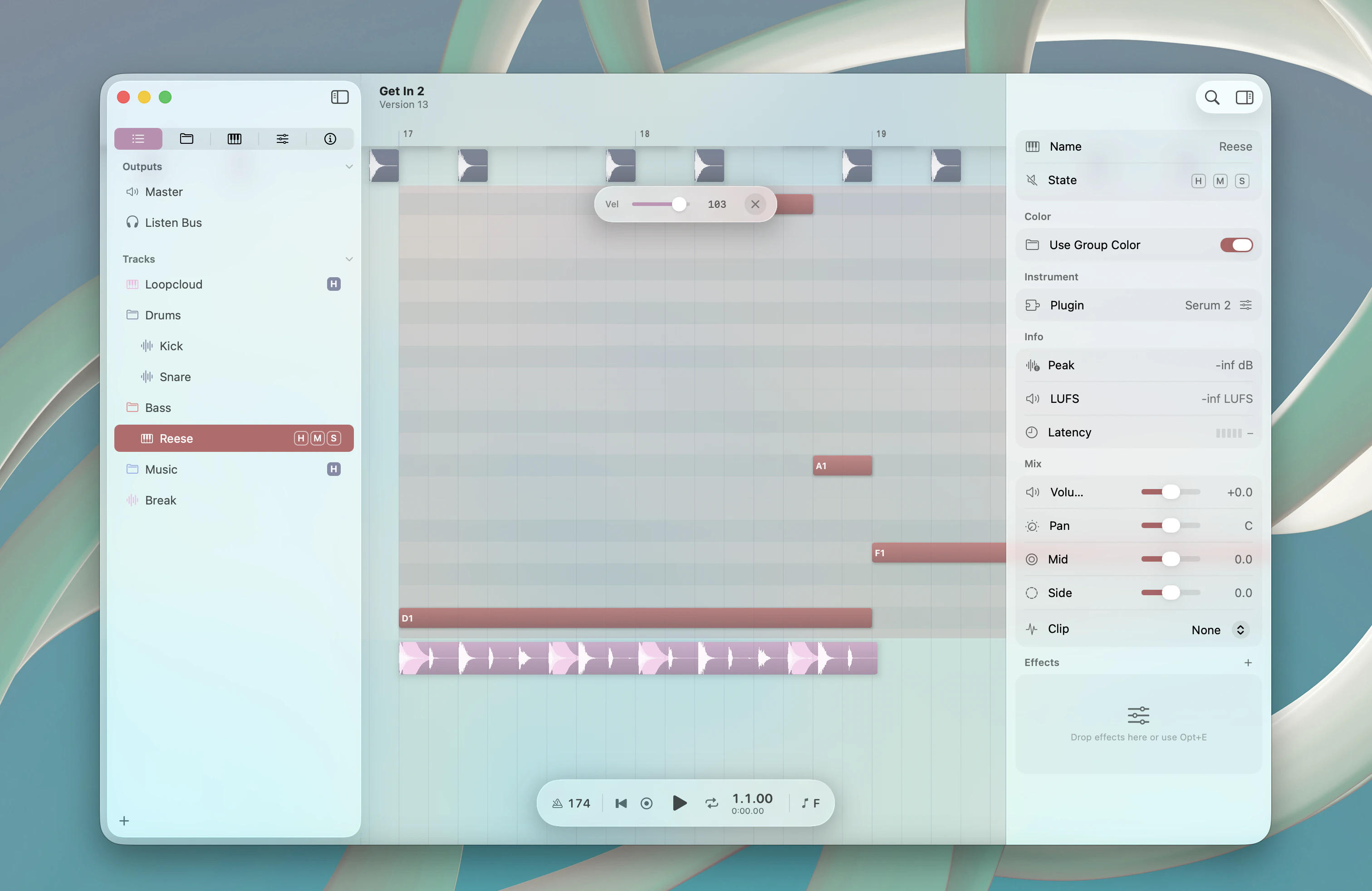
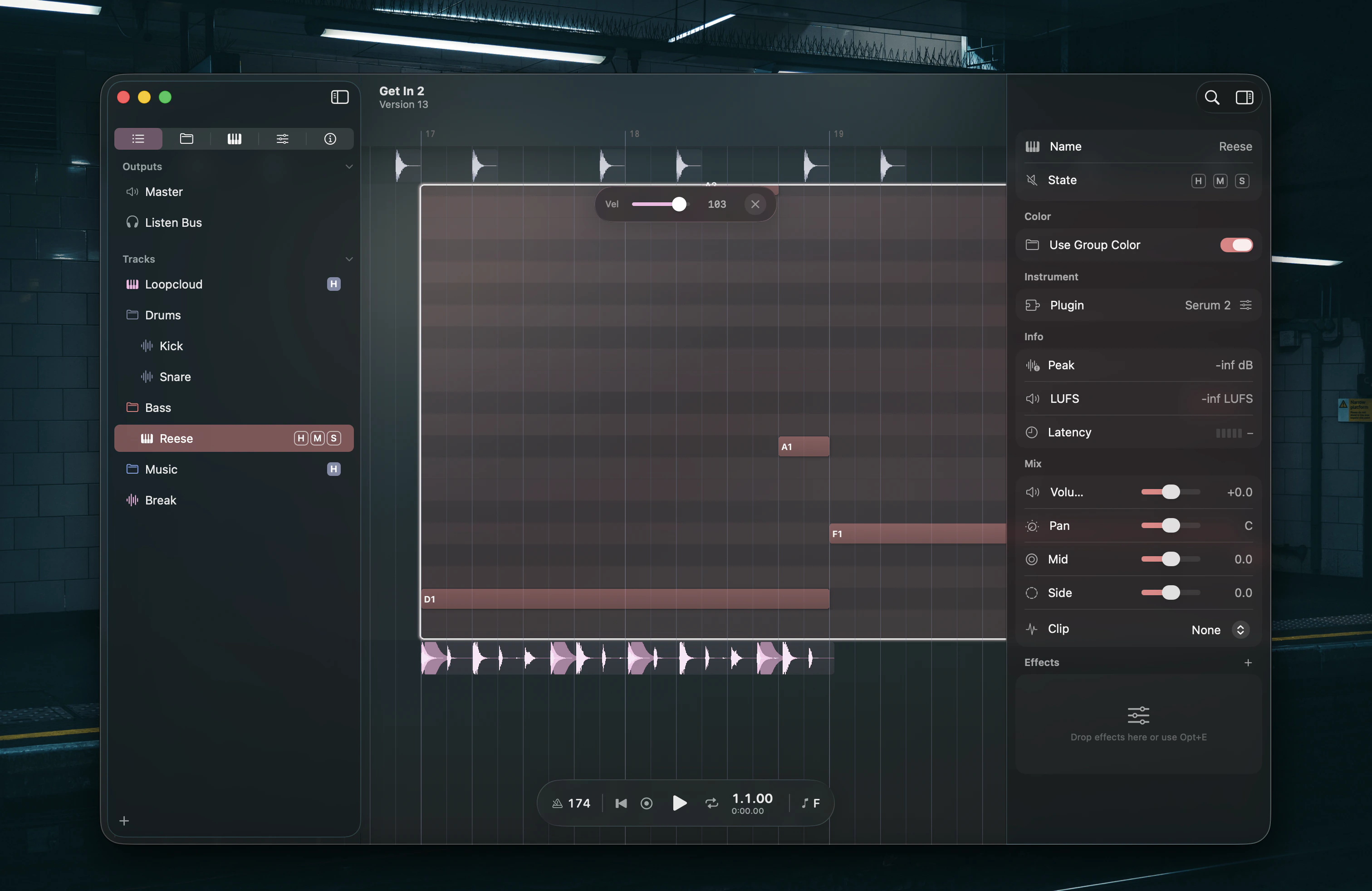 Open it to see every distinct clip on the track as a row with a live
mini-preview — a waveform for audio, note blocks for MIDI, the curve for
automation — plus how many copies are linked to each one:
* **Click a row** to switch the focused clip to that one. It immediately plays
and displays the clip you picked.
* **Unlink** (footer) detaches the focused clip so its edits stop carrying to
the others. It's disabled when the clip isn't linked to anything.
* **Link Identical** (footer) merges every clip on the track whose body is
exactly the same as the focused one into a single linked group. It's disabled
when there's nothing identical to link.
Press `Escape` to close the picker; a second `Escape` exits Focus Mode.
## Things to know
* **Linking is same-track only.** A clip can only link to other clips on its own
track. This is why moving a clip to another track always unlinks it.
* **Position, mute, and quantize stay per-copy.** Only the clip body is shared —
each linked clip keeps its own spot on the timeline and its own mute state.
* **Clip-gain number keys aren't shared.** The `0`–`9` clip-gain keys on the
timeline change exactly the clips you selected and leave linked copies alone.
Use the gain slider in Focus Mode (or the inspector) if you want a gain change
to carry across the link.
## Shortcuts
The keys for linking and unlinking clips are below. The [Timeline Shortcuts](/shortcuts/timeline) reference has the complete grid.
| Action | Shortcut |
| ---------------------------- | ------------ |
| Duplicate — linked | `⌘D` |
| Duplicate — unlinked | `⌘⇧D` |
| Stamp linked copy | `⌘`+click |
| Paste (same track) | `⌘V` |
| Unlink clip | `⌘I` |
| Link identical clips | `⌘⇧I` |
| Split / slice (auto-unlinks) | `⌘E` / `⌘⇧E` |
Open it to see every distinct clip on the track as a row with a live
mini-preview — a waveform for audio, note blocks for MIDI, the curve for
automation — plus how many copies are linked to each one:
* **Click a row** to switch the focused clip to that one. It immediately plays
and displays the clip you picked.
* **Unlink** (footer) detaches the focused clip so its edits stop carrying to
the others. It's disabled when the clip isn't linked to anything.
* **Link Identical** (footer) merges every clip on the track whose body is
exactly the same as the focused one into a single linked group. It's disabled
when there's nothing identical to link.
Press `Escape` to close the picker; a second `Escape` exits Focus Mode.
## Things to know
* **Linking is same-track only.** A clip can only link to other clips on its own
track. This is why moving a clip to another track always unlinks it.
* **Position, mute, and quantize stay per-copy.** Only the clip body is shared —
each linked clip keeps its own spot on the timeline and its own mute state.
* **Clip-gain number keys aren't shared.** The `0`–`9` clip-gain keys on the
timeline change exactly the clips you selected and leave linked copies alone.
Use the gain slider in Focus Mode (or the inspector) if you want a gain change
to carry across the link.
## Shortcuts
The keys for linking and unlinking clips are below. The [Timeline Shortcuts](/shortcuts/timeline) reference has the complete grid.
| Action | Shortcut |
| ---------------------------- | ------------ |
| Duplicate — linked | `⌘D` |
| Duplicate — unlinked | `⌘⇧D` |
| Stamp linked copy | `⌘`+click |
| Paste (same track) | `⌘V` |
| Unlink clip | `⌘I` |
| Link identical clips | `⌘⇧I` |
| Split / slice (auto-unlinks) | `⌘E` / `⌘⇧E` |