> ## Documentation Index
> Fetch the complete documentation index at: https://docs.gridshift.studio/llms.txt
> Use this file to discover all available pages before exploring further.
# Inspector
> The panel on the right. Five tabs — track details, sample browser, instruments, effects, and project settings — switchable with ⌘1–⌘5.
The inspector is the panel on the right side of the main window. A row of tabs in the toolbar switches what it shows, while the [Sidebar](/features/sidebar) keeps the track list in view the whole time.
It has five tabs, switchable from the toolbar or with the keyboard (`⌘1`–`⌘5`) — each shortcut also opens the inspector if it's hidden:
* **Tracks** — settings for the selected track
* **Browser** — audio sample file browser
* **Instruments** — installed Audio Unit instruments
* **Effects** — installed Audio Unit effects
* **Project** — project settings, tasks, and version history
## Tracks
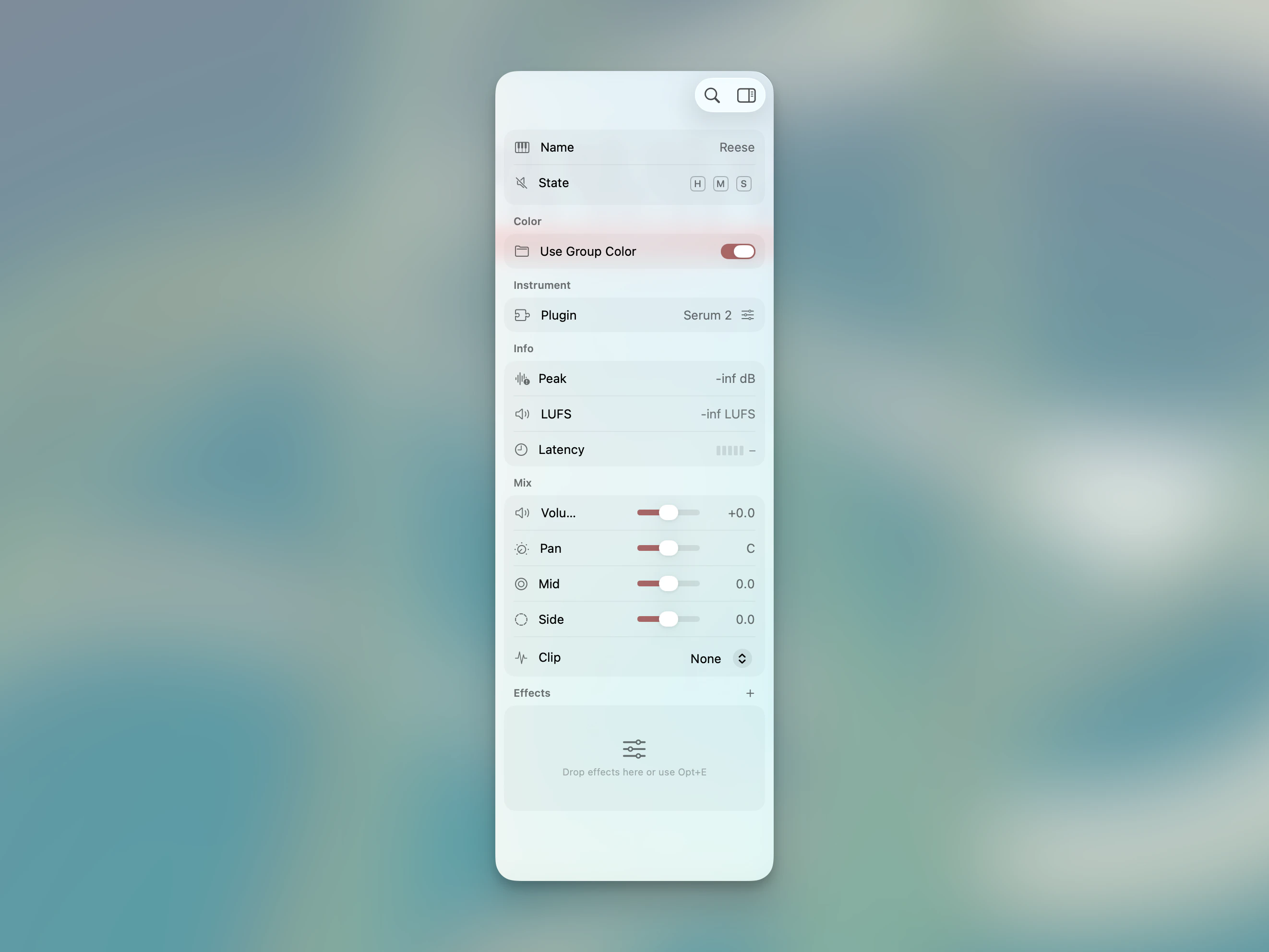
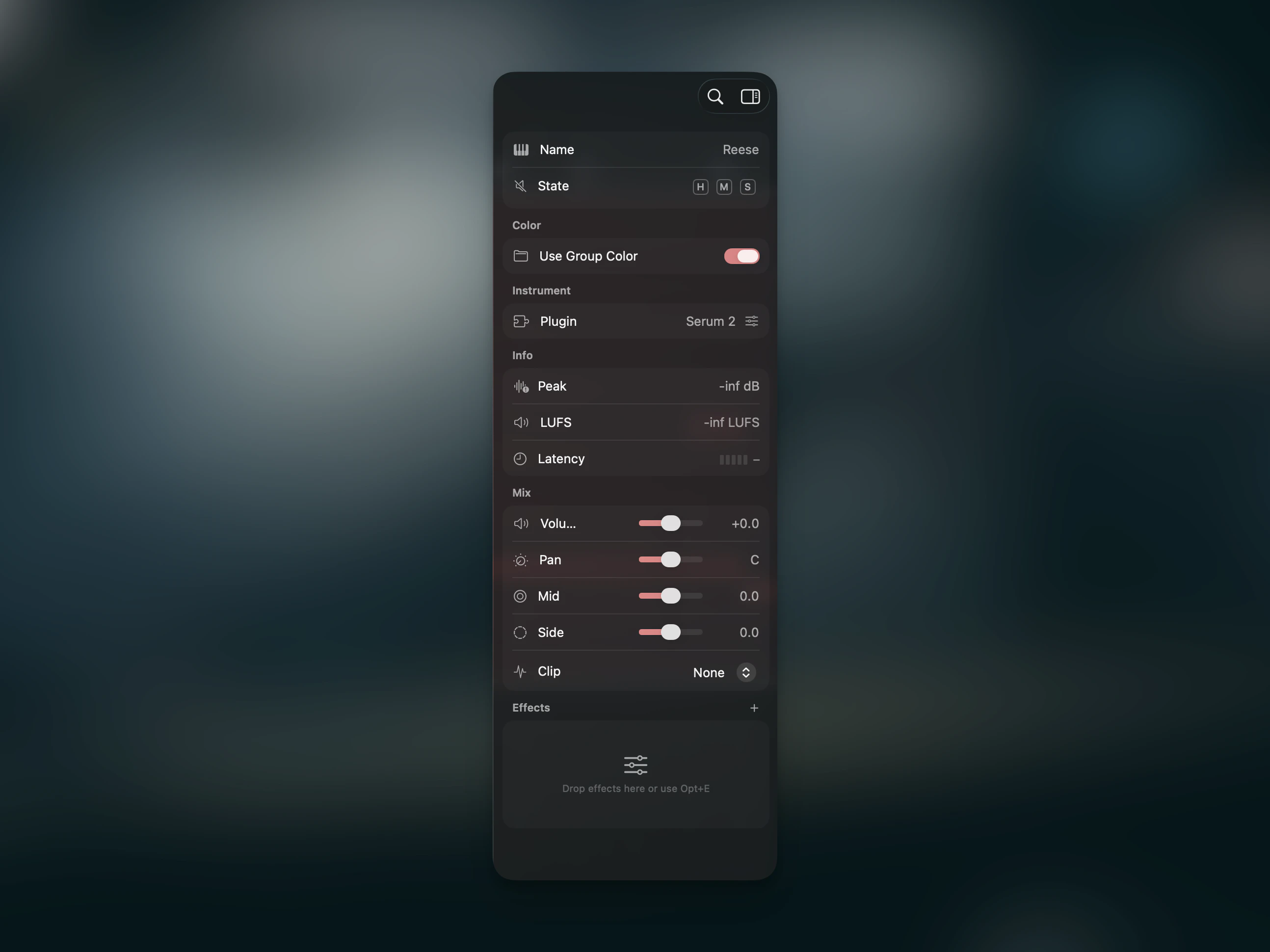
Select a track to open its settings in the **Tracks** tab. The sections from top to bottom:
 ### Track Properties
The track name (double-click to rename), plus toggles for **Mute** and **Solo**. If the track has plugin-induced latency, a latency indicator shows the total PDC delay in milliseconds.
### Color
A 12-color palette for the track. If the track belongs to a group, a **Use Group Color** toggle appears — when enabled, the track inherits the group's color.
### Source
Shows the assigned audio sample or Audio Unit instrument.
For **sample tracks** with transient markers:
| Control | Description |
| ---------- | ---------------------------------------------------------- |
| **BPM** | Detected or overridden source tempo (editable via stepper) |
| **Slices** | Number of detected slices |
| **Decay** | Envelope decay applied to all slices |
Time stretch settings are also available here. See [Time Stretching](/features/time-stretching) for details.
If the sample has transient markers, a **Groove Source** toggle appears. Enable it to use the sample's rhythmic feel as a [groove template](/features/groove#samples-as-groove-sources).
Click the waveform preview to open the [Sample Editor](/features/sample-editor) — a modal sheet for editing transient markers, slice settings, and the source BPM grid on a much larger waveform. The same editor is available from the Command Palette as **Edit Sample…** (`⌥X`).
For **instrument tracks**, the loaded Audio Unit instrument is shown with its interface. Hold **`⌘`** and drag on its controls to adjust them in place without opening the full window — the same goes for MIDI-effect cards. See [Direct Plugin Interaction](/features/plugin-strip#direct-plugin-interaction).
### Mix
Signal history visualization, stereo metering, volume fader, pan, mid/side processing, clipper/limiter, and mono-below frequency control. The section is collapsible. See [Mix Controls](/features/mix) for the full reference.
### Sends
On sample and instrument tracks, the **Sends** section lists one row per [Return track](/features/sends) in the project. Drag a row's slider above 0 to route the track into that return.
On a Return track, an **Incoming Sends** section appears instead, mirroring the rows from every source currently feeding the return. See [Returns & Sends](/features/sends) for the full reference.
### Grid
Per-track groove settings. By default tracks follow the global groove. Disable **Use Global Grid** to assign the track its own groove template and amount. See [Groove & Swing](/features/groove) for details.
## Browser
A file browser for audio samples. Add folders via the Command Palette → **"Add Sample Folder"**. The browser shows your favorite folders as an outline view.
Click a file to preview it. Drag one or multiple files onto the timeline to import them as new tracks.
For keyboard-driven search across every indexed folder — plus Smart Search and live sample swapping during playback — see the [Sample Library](/features/sample-library) page.
## Instruments
Lists installed Audio Unit instruments in collapsible categories, including **Favorites** and **Other**. Drag an instrument onto an instrument track to load it.
You can drag instruments within a category to reorder them, or drop them onto another category header to move them there. The context menu lets you create categories and assign a plugin without dragging.
Plugins are scanned on first launch — use **"Scan All Plugins"** from the Command Palette to rescan.
## Effects
Lists installed Audio Unit effects in the same category-based browser. Drag an effect onto the [Plugin Strip](/features/plugin-strip) to add it to a track. Saved [presets](/features/presets) are shown under their respective plugin.
Effects can be drag-reordered within a category and moved across categories by dropping them onto another category header.
Plugin categories live at the app level, not per project, and sync across your Macs via iCloud. See [Plugin Categories](/features/plugin-categories) for how to create, rename, reorder, and assign categories.
## Project
Global project settings and metadata:
| Section | Content |
| --------------- | --------------------------------------------------------------- |
| **Info** | Project cover artwork, editable title, and workflow status |
| **Audio** | Sample rate |
| **Key & Scale** | Root note and scale type for Musical Typing and MIDI generation |
| **Grid** | BPM, [groove](/features/groove) template and amount |
| **Tasks** | Per-project task list with checkboxes |
| **Versions** | [Version history](/features/versioning) with audio previews |
### Info Section
The Info section at the top of the Project tab combines the project artwork, an editable title field, and the workflow status picker into a single group. The title defaults to the project file name and updates the window title as you type.
The status picker tracks where a project sits in your workflow. Choose from five stages:
| Status | Description |
| ------------- | ---------------------------- |
| **Draft** | Initial ideas and sketches |
| **Flesh Out** | Building out the arrangement |
| **Polish** | Mixing and fine-tuning |
| **Released** | Final, published version |
| **Archived** | No longer active |
The [Project Overview](/features/project-overview) (`⌘P`) groups all your iCloud projects by status, so you can see at a glance what needs attention.
## Shortcuts
The keys for opening inspector tabs and the editors they link to are below. The [Global Shortcuts](/shortcuts/global) reference has the complete grid for tabs and focus areas.
| Action | Shortcut |
| ------------------- | --------- |
| Show inspector tabs | `⌘1`–`⌘5` |
| Project Overview | `⌘P` |
| Edit Sample | `⌥X` |
### Track Properties
The track name (double-click to rename), plus toggles for **Mute** and **Solo**. If the track has plugin-induced latency, a latency indicator shows the total PDC delay in milliseconds.
### Color
A 12-color palette for the track. If the track belongs to a group, a **Use Group Color** toggle appears — when enabled, the track inherits the group's color.
### Source
Shows the assigned audio sample or Audio Unit instrument.
For **sample tracks** with transient markers:
| Control | Description |
| ---------- | ---------------------------------------------------------- |
| **BPM** | Detected or overridden source tempo (editable via stepper) |
| **Slices** | Number of detected slices |
| **Decay** | Envelope decay applied to all slices |
Time stretch settings are also available here. See [Time Stretching](/features/time-stretching) for details.
If the sample has transient markers, a **Groove Source** toggle appears. Enable it to use the sample's rhythmic feel as a [groove template](/features/groove#samples-as-groove-sources).
Click the waveform preview to open the [Sample Editor](/features/sample-editor) — a modal sheet for editing transient markers, slice settings, and the source BPM grid on a much larger waveform. The same editor is available from the Command Palette as **Edit Sample…** (`⌥X`).
For **instrument tracks**, the loaded Audio Unit instrument is shown with its interface. Hold **`⌘`** and drag on its controls to adjust them in place without opening the full window — the same goes for MIDI-effect cards. See [Direct Plugin Interaction](/features/plugin-strip#direct-plugin-interaction).
### Mix
Signal history visualization, stereo metering, volume fader, pan, mid/side processing, clipper/limiter, and mono-below frequency control. The section is collapsible. See [Mix Controls](/features/mix) for the full reference.
### Sends
On sample and instrument tracks, the **Sends** section lists one row per [Return track](/features/sends) in the project. Drag a row's slider above 0 to route the track into that return.
On a Return track, an **Incoming Sends** section appears instead, mirroring the rows from every source currently feeding the return. See [Returns & Sends](/features/sends) for the full reference.
### Grid
Per-track groove settings. By default tracks follow the global groove. Disable **Use Global Grid** to assign the track its own groove template and amount. See [Groove & Swing](/features/groove) for details.
## Browser
A file browser for audio samples. Add folders via the Command Palette → **"Add Sample Folder"**. The browser shows your favorite folders as an outline view.
Click a file to preview it. Drag one or multiple files onto the timeline to import them as new tracks.
For keyboard-driven search across every indexed folder — plus Smart Search and live sample swapping during playback — see the [Sample Library](/features/sample-library) page.
## Instruments
Lists installed Audio Unit instruments in collapsible categories, including **Favorites** and **Other**. Drag an instrument onto an instrument track to load it.
You can drag instruments within a category to reorder them, or drop them onto another category header to move them there. The context menu lets you create categories and assign a plugin without dragging.
Plugins are scanned on first launch — use **"Scan All Plugins"** from the Command Palette to rescan.
## Effects
Lists installed Audio Unit effects in the same category-based browser. Drag an effect onto the [Plugin Strip](/features/plugin-strip) to add it to a track. Saved [presets](/features/presets) are shown under their respective plugin.
Effects can be drag-reordered within a category and moved across categories by dropping them onto another category header.
Plugin categories live at the app level, not per project, and sync across your Macs via iCloud. See [Plugin Categories](/features/plugin-categories) for how to create, rename, reorder, and assign categories.
## Project
Global project settings and metadata:
| Section | Content |
| --------------- | --------------------------------------------------------------- |
| **Info** | Project cover artwork, editable title, and workflow status |
| **Audio** | Sample rate |
| **Key & Scale** | Root note and scale type for Musical Typing and MIDI generation |
| **Grid** | BPM, [groove](/features/groove) template and amount |
| **Tasks** | Per-project task list with checkboxes |
| **Versions** | [Version history](/features/versioning) with audio previews |
### Info Section
The Info section at the top of the Project tab combines the project artwork, an editable title field, and the workflow status picker into a single group. The title defaults to the project file name and updates the window title as you type.
The status picker tracks where a project sits in your workflow. Choose from five stages:
| Status | Description |
| ------------- | ---------------------------- |
| **Draft** | Initial ideas and sketches |
| **Flesh Out** | Building out the arrangement |
| **Polish** | Mixing and fine-tuning |
| **Released** | Final, published version |
| **Archived** | No longer active |
The [Project Overview](/features/project-overview) (`⌘P`) groups all your iCloud projects by status, so you can see at a glance what needs attention.
## Shortcuts
The keys for opening inspector tabs and the editors they link to are below. The [Global Shortcuts](/shortcuts/global) reference has the complete grid for tabs and focus areas.
| Action | Shortcut |
| ------------------- | --------- |
| Show inspector tabs | `⌘1`–`⌘5` |
| Project Overview | `⌘P` |
| Edit Sample | `⌥X` |