> ## Documentation Index
> Fetch the complete documentation index at: https://docs.gridshift.studio/llms.txt
> Use this file to discover all available pages before exploring further.
# Focus Mode
> Edit a clip in detail directly inside the timeline — it expands inline instead of opening a separate window, so your arrangement stays visible.
**Focus Mode** expands a single clip inline in the timeline for detailed editing, so you stay in context with your arrangement visible.
The timeline has three vertical zoom levels: **Compact** (`⌥↑`) drops all tracks to minimal height for an arrangement overview, **Normal** is the default track height, and **Focus** (`⌥↓` or double-click a clip) expands a single clip for detailed editing. Exit Focus Mode with `Escape` or `⌥↑`; your zoom and scroll position is restored automatically.
While in Focus Mode, move to an adjacent clip on the same track without exiting — `Tab` / `⇧Tab` step to the next / previous clip, and `→` / `←` do the same.
## Audio Focus Mode
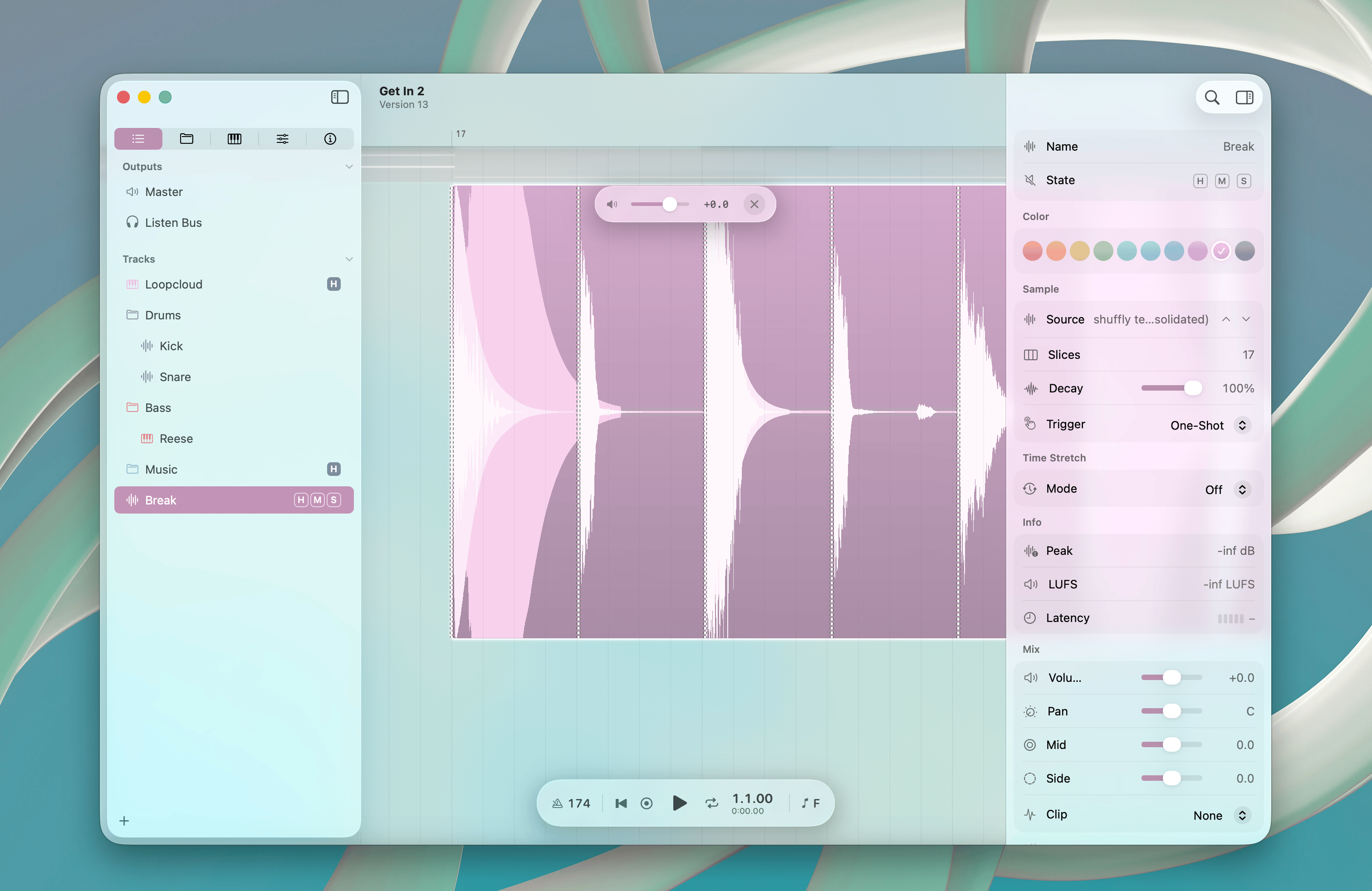
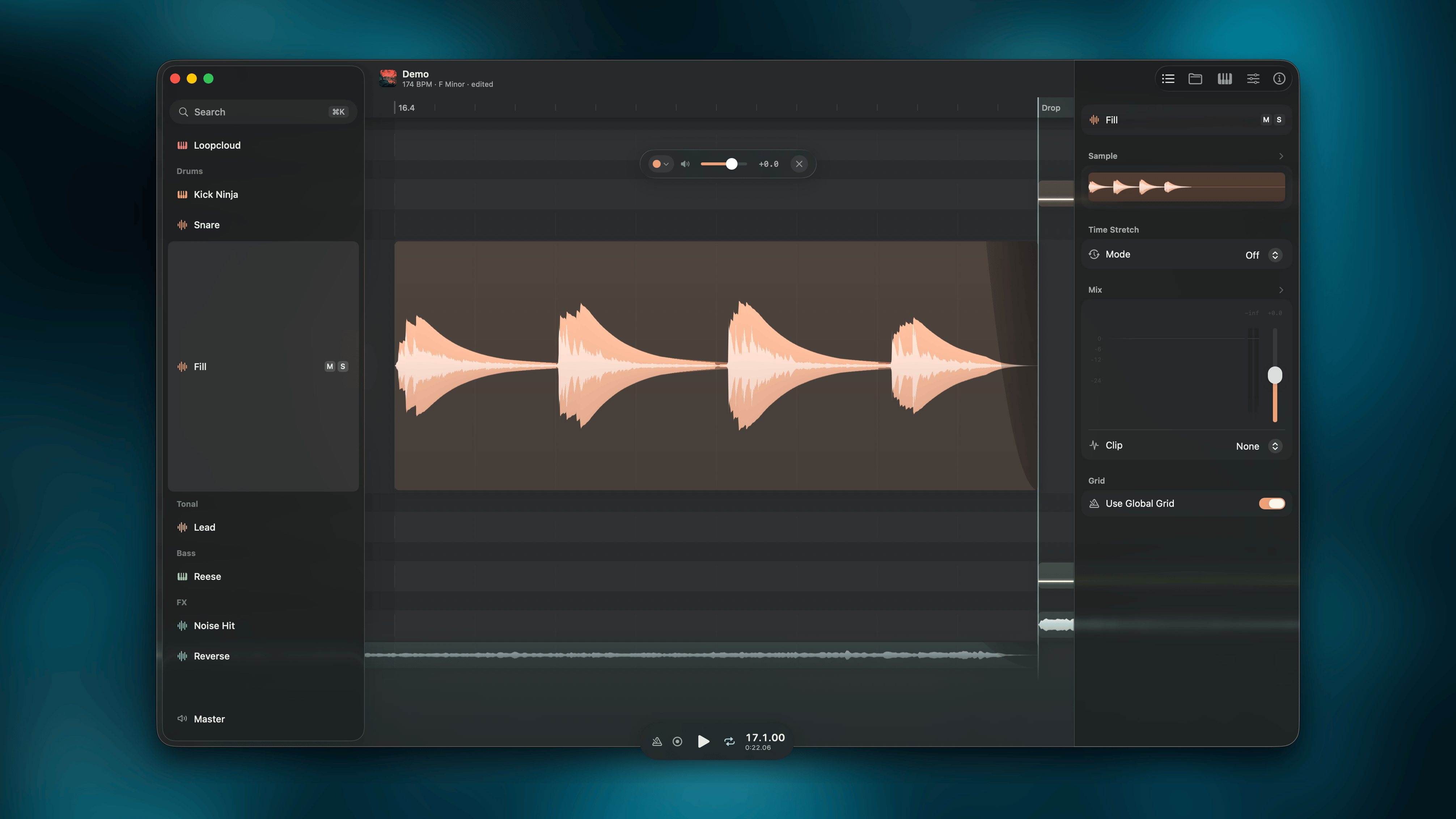 The track expands to show a detailed waveform of the clip. Transient detection and marker editing live in the [Sample Editor](/features/sample-editor) — open it via a click on the inspector waveform preview or `⌥X`.
### Slice playback
Letter keys trigger slices between transient markers. `Z` and `X` switch between pages of slices when there are more slices than keys.
```text theme={null}
Upper row: Q W E R T Y U I O P
Middle row: A S D F G H J K L
Lower row: [Z] [X] C V B N M
↑ page ↑ first slice
```
The Inspector provides playback options: slices play in full, and you can apply a decay time across all slices.
## MIDI Focus Mode
The track expands to show a detailed waveform of the clip. Transient detection and marker editing live in the [Sample Editor](/features/sample-editor) — open it via a click on the inspector waveform preview or `⌥X`.
### Slice playback
Letter keys trigger slices between transient markers. `Z` and `X` switch between pages of slices when there are more slices than keys.
```text theme={null}
Upper row: Q W E R T Y U I O P
Middle row: A S D F G H J K L
Lower row: [Z] [X] C V B N M
↑ page ↑ first slice
```
The Inspector provides playback options: slices play in full, and you can apply a decay time across all slices.
## MIDI Focus Mode
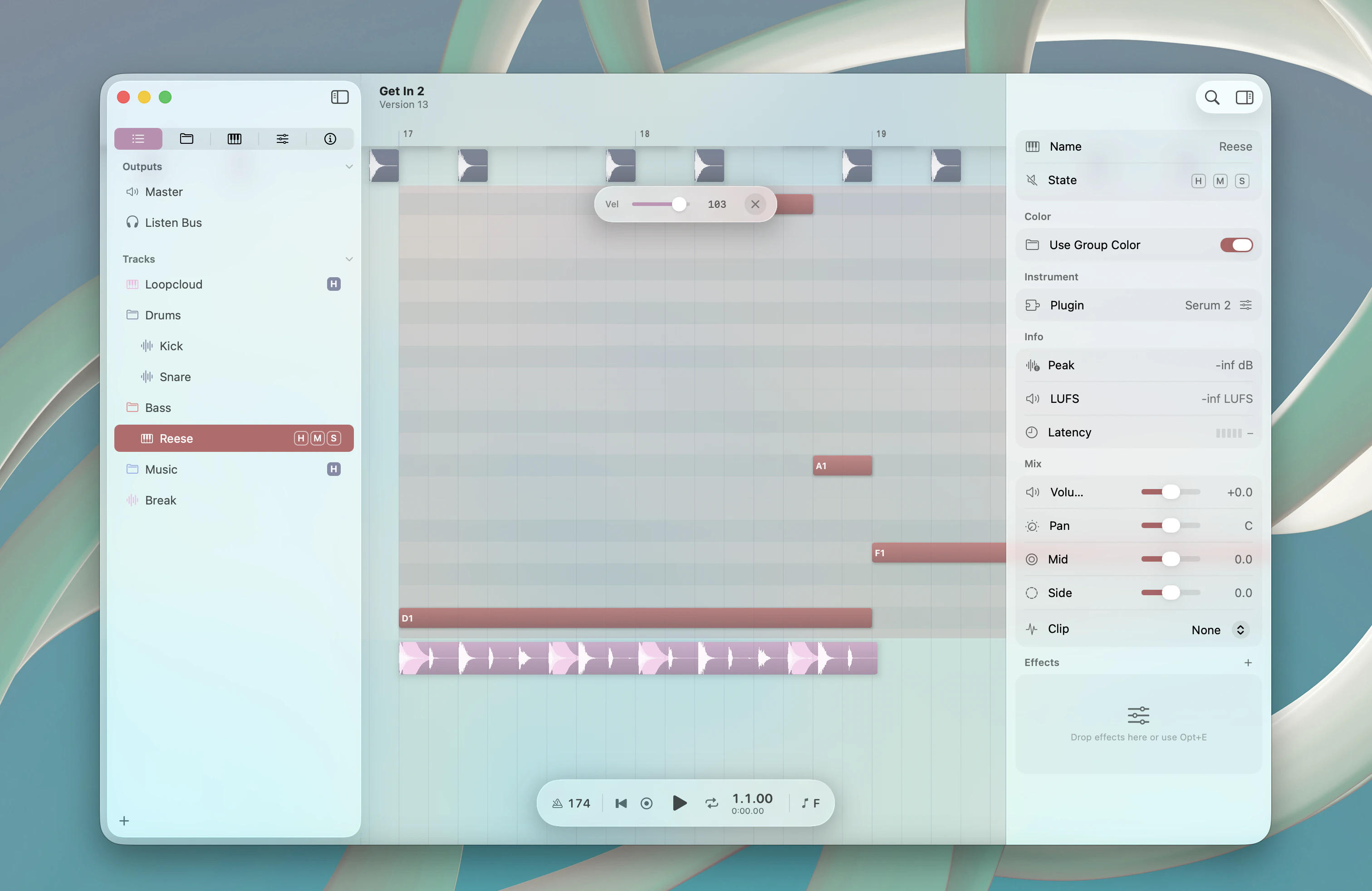
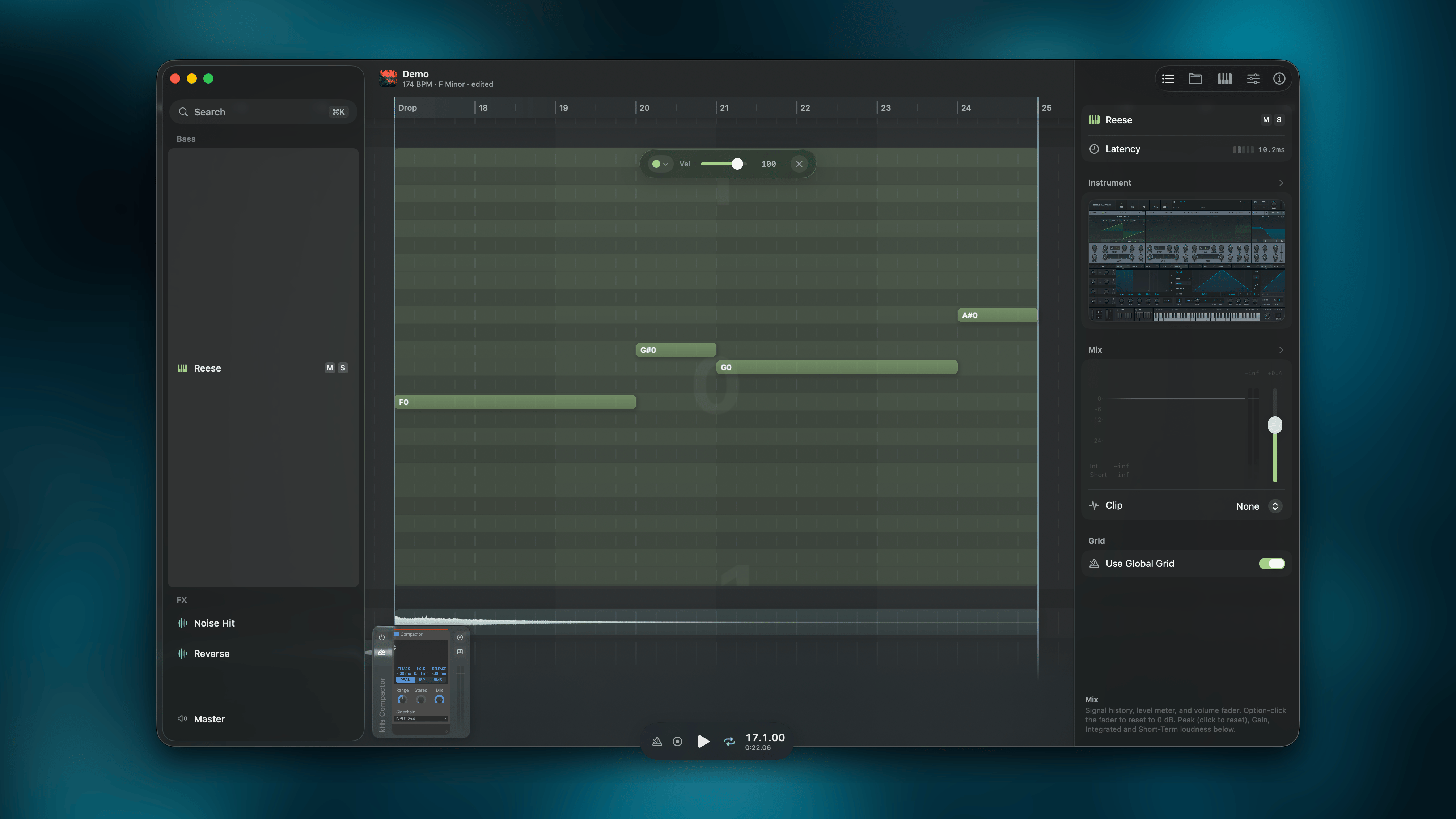 An inline piano roll grid appears inside the track lane. Musical Typing is active — play notes from your computer keyboard in real time. See the [Musical Typing](/shortcuts/musical-typing) page for the full keyboard layouts.
### Create and delete notes
Hold `⌘` and click on an empty area to create notes. The behavior mirrors clip creation on the timeline:
| Context | Result |
| ---------------- | ------------------------------------------ |
| No note selected | Creates a new note at the clicked position |
| Note selected | Stamps a duplicate of the selected note |
Drag after clicking to set the note duration. Right-click a note to delete it. Right-click and drag to erase multiple notes.
## Automation Focus Mode
Double-click an automation clip to edit automation curves inline. See [Automation](/features/automation) for the full editing reference.
## Focus Bar
A floating bar appears at the top of the focused clip. Its contents depend on the clip type:
| Clip Type | Control | Range |
| ---------- | ----------------------------------------- | --------------------------------- |
| Audio | Gain slider | -24 dB to +12 dB |
| MIDI | Velocity slider | 0–127 (applies to selected notes) |
| Automation | Draw / LFO mode toggle and shape controls | — |
### Clip picker
The bar leads with a **clip picker** — a shade swatch plus a badge counting how many clips are linked together. Open it to switch the focused clip to another one on the track (each row shows a live mini-preview) or to **Unlink** so the clip stops sharing its body. Press `Escape` once to close the picker, again to exit Focus Mode. See [Linked Clips](/features/linked-clips) for the full model.
## Shortcuts
The keys for entering, exiting, and navigating Focus Mode are below. The [Focus Mode Shortcuts](/shortcuts/focus-mode) reference has the complete grid — piano-roll note editing, audio-slice triggers, and automation-curve editing.
| Action | Shortcut |
| ---------------------------- | -------------------- |
| Enter Focus Mode | `⌥↓` or double-click |
| Exit Focus Mode | `Escape` or `⌥↑` |
| Compact zoom | `⌥↑` |
| Focus next / previous clip | `Tab` / `⇧Tab` |
| Move to next / previous clip | `→` / `←` |
| Open Sample Editor | `⌥X` |
| Split clip at all transients | `⌘⇧E` |
An inline piano roll grid appears inside the track lane. Musical Typing is active — play notes from your computer keyboard in real time. See the [Musical Typing](/shortcuts/musical-typing) page for the full keyboard layouts.
### Create and delete notes
Hold `⌘` and click on an empty area to create notes. The behavior mirrors clip creation on the timeline:
| Context | Result |
| ---------------- | ------------------------------------------ |
| No note selected | Creates a new note at the clicked position |
| Note selected | Stamps a duplicate of the selected note |
Drag after clicking to set the note duration. Right-click a note to delete it. Right-click and drag to erase multiple notes.
## Automation Focus Mode
Double-click an automation clip to edit automation curves inline. See [Automation](/features/automation) for the full editing reference.
## Focus Bar
A floating bar appears at the top of the focused clip. Its contents depend on the clip type:
| Clip Type | Control | Range |
| ---------- | ----------------------------------------- | --------------------------------- |
| Audio | Gain slider | -24 dB to +12 dB |
| MIDI | Velocity slider | 0–127 (applies to selected notes) |
| Automation | Draw / LFO mode toggle and shape controls | — |
### Clip picker
The bar leads with a **clip picker** — a shade swatch plus a badge counting how many clips are linked together. Open it to switch the focused clip to another one on the track (each row shows a live mini-preview) or to **Unlink** so the clip stops sharing its body. Press `Escape` once to close the picker, again to exit Focus Mode. See [Linked Clips](/features/linked-clips) for the full model.
## Shortcuts
The keys for entering, exiting, and navigating Focus Mode are below. The [Focus Mode Shortcuts](/shortcuts/focus-mode) reference has the complete grid — piano-roll note editing, audio-slice triggers, and automation-curve editing.
| Action | Shortcut |
| ---------------------------- | -------------------- |
| Enter Focus Mode | `⌥↓` or double-click |
| Exit Focus Mode | `Escape` or `⌥↑` |
| Compact zoom | `⌥↑` |
| Focus next / previous clip | `Tab` / `⇧Tab` |
| Move to next / previous clip | `→` / `←` |
| Open Sample Editor | `⌥X` |
| Split clip at all transients | `⌘⇧E` |