> ## Documentation Index
> Fetch the complete documentation index at: https://docs.gridshift.studio/llms.txt
> Use this file to discover all available pages before exploring further.
# Command Palette
> Access over 200 commands via fuzzy search with customizable keyboard shortcuts. The fastest way to control every aspect of Gridshift.
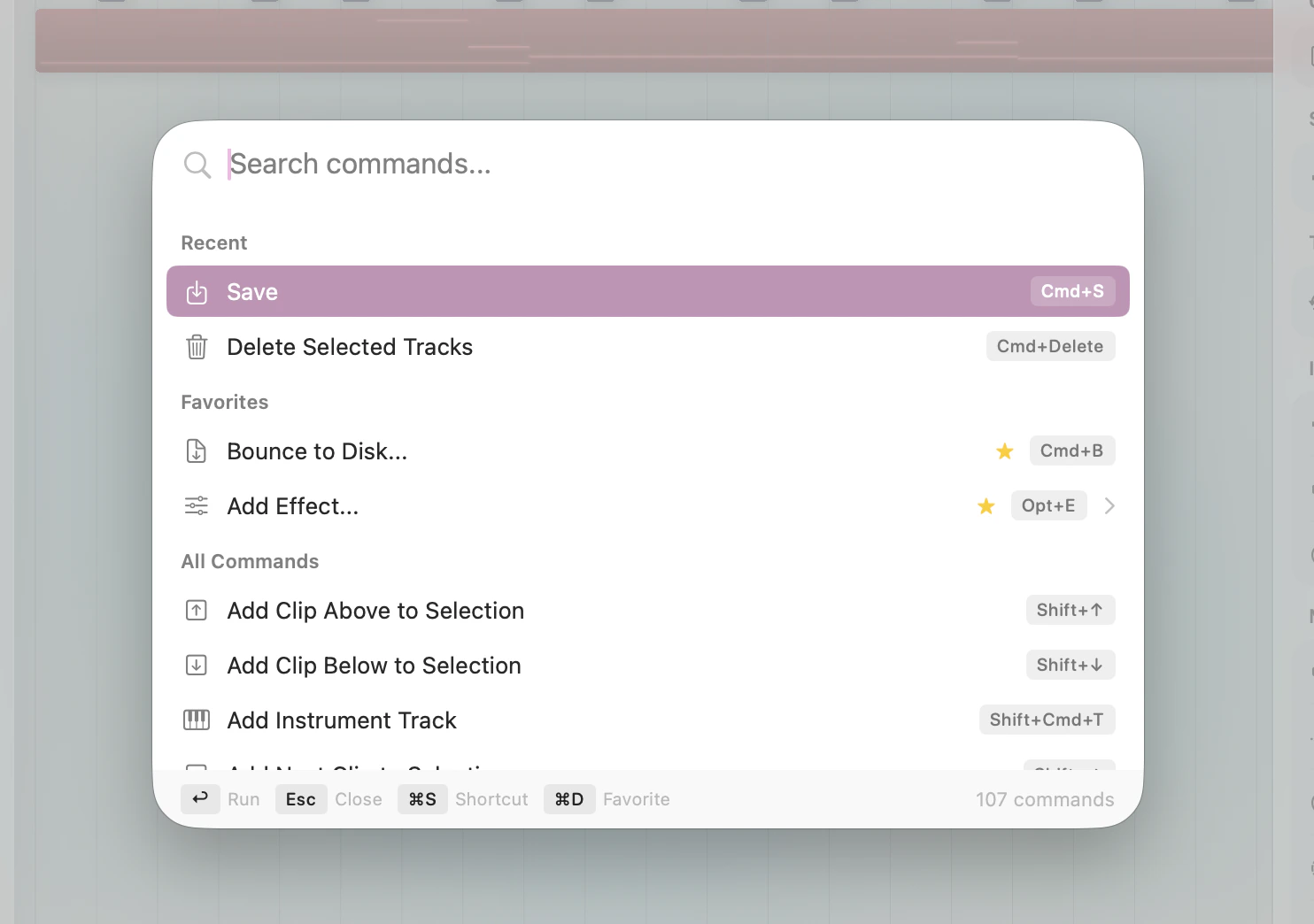
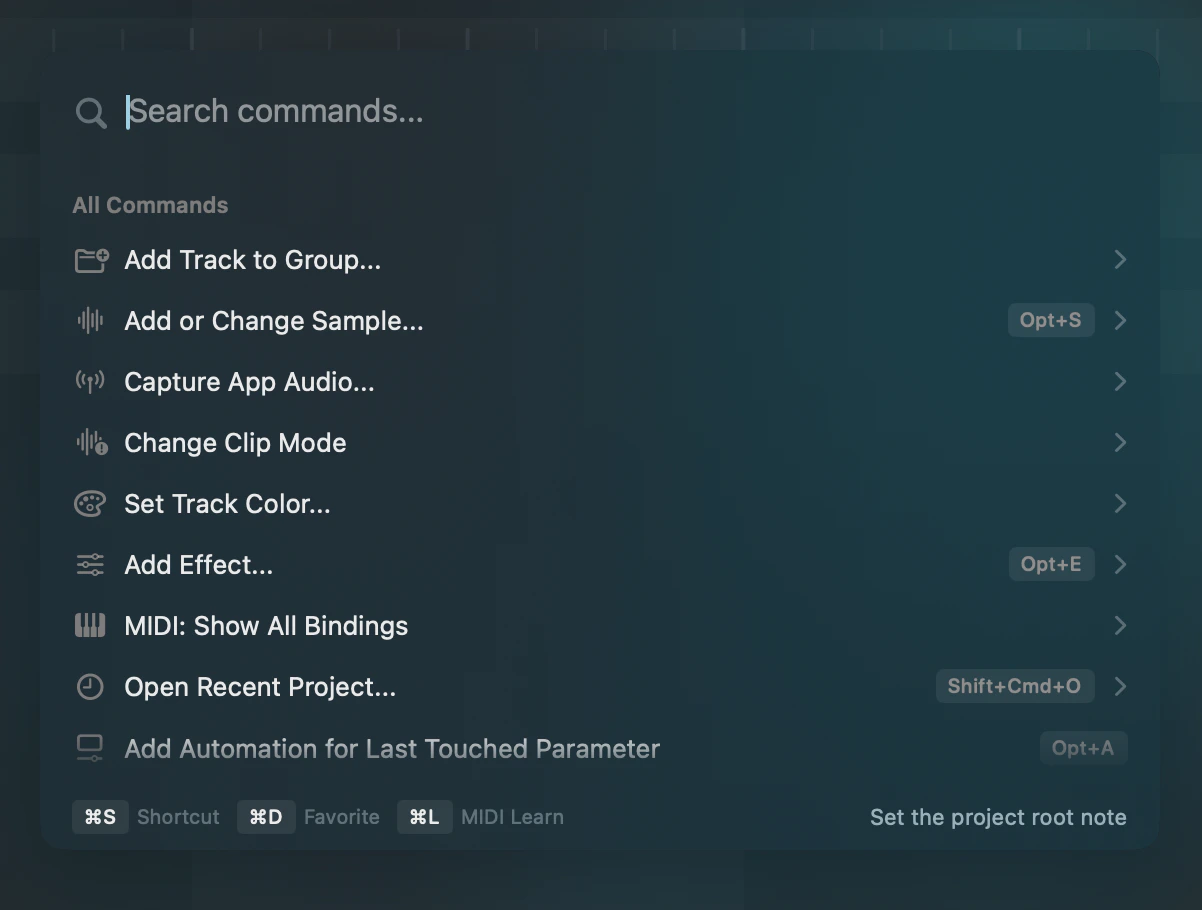
The **Command Palette** is a fuzzy-searchable list of every command in Gridshift, opened with `⌘K`. Start typing to filter commands, use the arrow keys to navigate, and press `Return` to execute. Press `Escape` to go back or close.
 ## Custom shortcuts
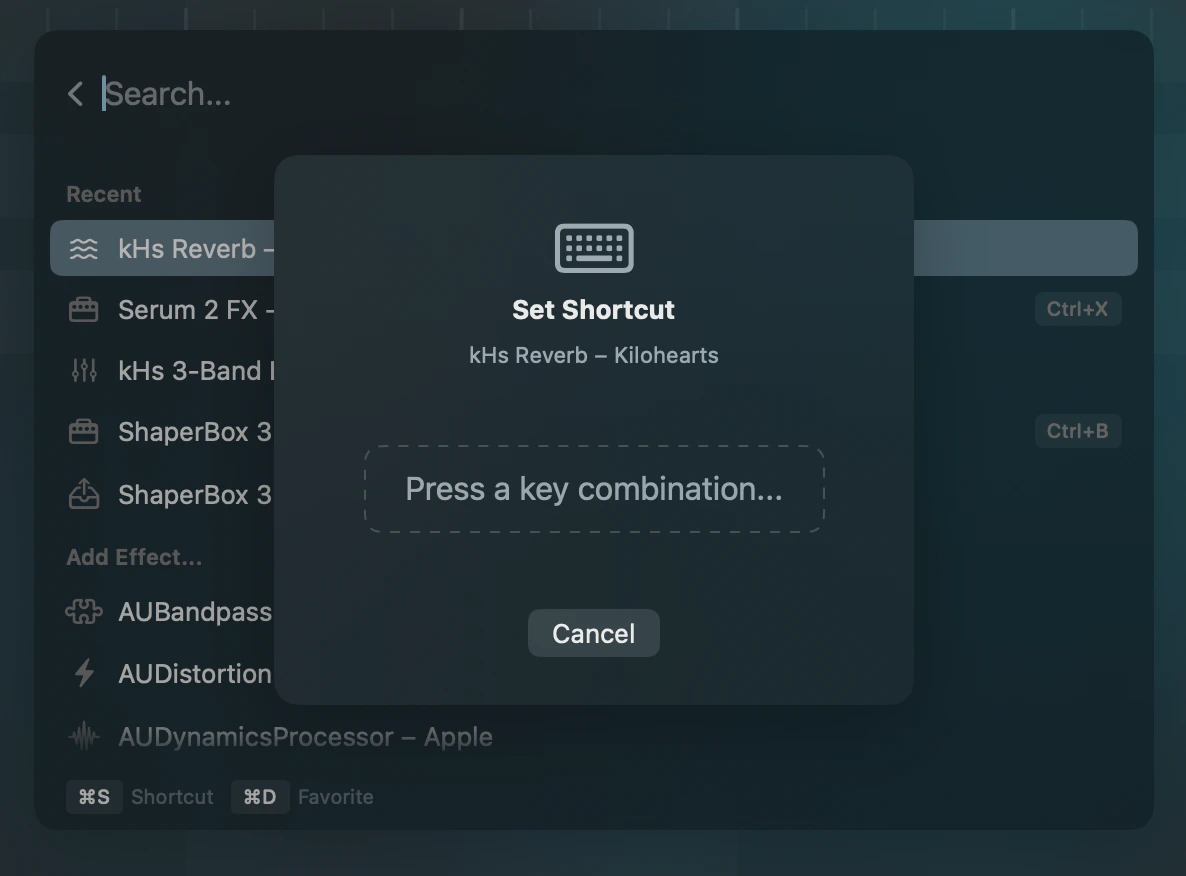 Any command can have a custom keyboard shortcut:
If your combination is already used by another command, Gridshift shows you which command owns it and keeps Save disabled until you clear it and pick a different one.
Shortcuts are stored locally and persist across sessions.
## Sub-commands
Any command can have a custom keyboard shortcut:
If your combination is already used by another command, Gridshift shows you which command owns it and keeps Save disabled until you clear it and pick a different one.
Shortcuts are stored locally and persist across sessions.
## Sub-commands
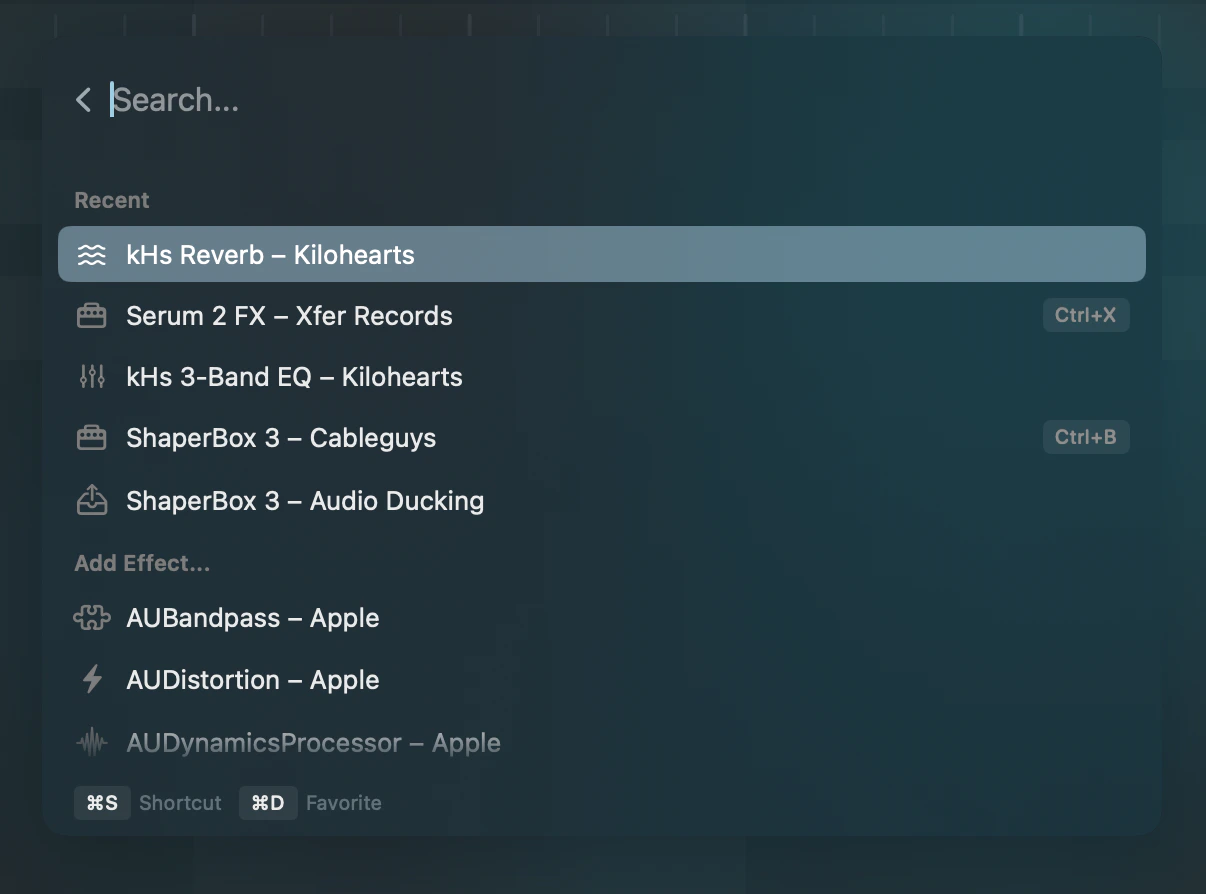 Some commands have sub-menus for additional options. For example:
* **Select Instrument** → shows available Audio Unit instruments
* **Add Effect** → shows available Audio Unit effects
* **Change Scale** → shows all available scales
* **Set Track Color** → shows the color palette
Press `Return` to drill into the sub-menu. Sub-commands can also have their own shortcuts.
## Favorites & recents
Commands you use frequently appear at the top:
* **Favorites** (⭐) — commands you've explicitly marked with `⌘D`
* **Recents** — your most recently used commands
## Shortcuts
The keys below drive the palette itself. The [Global Shortcuts](/shortcuts/global) reference lists app-wide commands, and any command in the palette can be bound to your own key.
| Action | Shortcut |
| -------------------------------- | --------- |
| Open command palette | `⌘K` |
| Move selection up / down | `↑` / `↓` |
| Execute command / enter sub-menu | `Return` |
| Go back / close | `Escape` |
| Assign shortcut | `⌘S` |
| Add to favorites | `⌘D` |
Some commands have sub-menus for additional options. For example:
* **Select Instrument** → shows available Audio Unit instruments
* **Add Effect** → shows available Audio Unit effects
* **Change Scale** → shows all available scales
* **Set Track Color** → shows the color palette
Press `Return` to drill into the sub-menu. Sub-commands can also have their own shortcuts.
## Favorites & recents
Commands you use frequently appear at the top:
* **Favorites** (⭐) — commands you've explicitly marked with `⌘D`
* **Recents** — your most recently used commands
## Shortcuts
The keys below drive the palette itself. The [Global Shortcuts](/shortcuts/global) reference lists app-wide commands, and any command in the palette can be bound to your own key.
| Action | Shortcut |
| -------------------------------- | --------- |
| Open command palette | `⌘K` |
| Move selection up / down | `↑` / `↓` |
| Execute command / enter sub-menu | `Return` |
| Go back / close | `Escape` |
| Assign shortcut | `⌘S` |
| Add to favorites | `⌘D` |